
You can take a website screenshot in PHP by sending a cURL request to the ScrapingBee API. ScrapingBee allows you to capture the viewport, full page, or specific page elements.
This tutorial demonstrates how to create a PHP screenshot script using three core parameters: screenshot, screenshot_full_page, and screenshot_selector.
1. Using screenshot parameter
The screenshot parameter captures the visible viewport, not the full scrollable page.
The code below takes a screenshot of the blog page:
<?php
// Get cURL resource
$ch = curl_init();
// Set base url & API key
$BASE_URL = "https://app.scrapingbee.com/api/v1/?";
$API_KEY = "YOUR-API-KEY";
// Set parameters
$parameters = array(
    'api_key' => $API_KEY,
    'url' => 'https://scrapingbee.com/blog/', // The URL to scrape
    'screenshot' => true // Set screenshot parameter to true
);
// Building the URL query
$query = http_build_query($parameters);
// Set the URL for cURL
curl_setopt($ch, CURLOPT_URL, $BASE_URL.$query);
// Set method
curl_setopt($ch, CURLOPT_CUSTOMREQUEST, 'GET');
// Return the transfer as a string
curl_setopt($ch, CURLOPT_RETURNTRANSFER, 1);
// Send the request and save response to $response
$response = curl_exec($ch);
// Stop if fails
if (!$response) {
    die('Error: "' . curl_error($ch) . '" - Code: ' . curl_errno($ch));
}
echo 'HTTP Status Code: ' . curl_getinfo($ch, CURLINFO_HTTP_CODE) . PHP_EOL;
$file = fopen("screenshot.png", "w");
fwrite($file, $response);
fclose($file);
// Close curl resource to free up system resources
curl_close($ch);
?>
As you can see in the output below, the screenshot only captures the visible portion of the page.
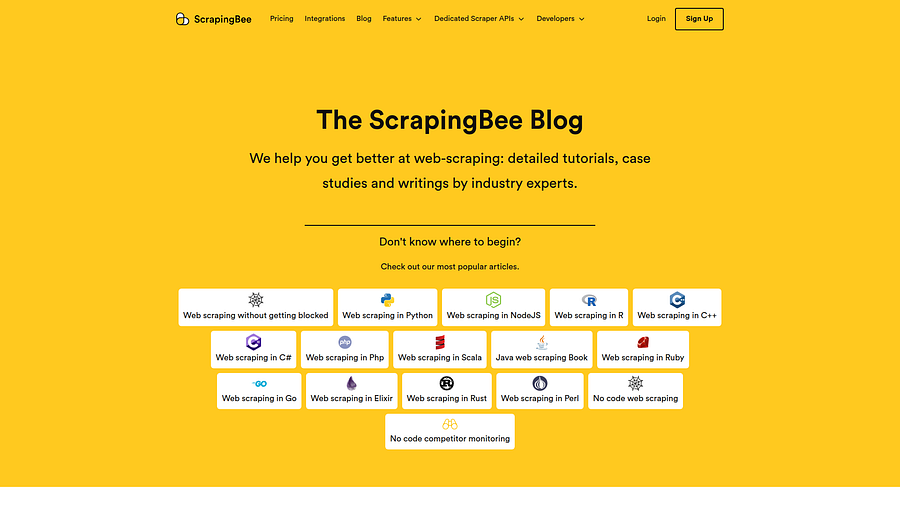
To change the size of the image and the visible portion of the page, we have to change the scraper's default viewport. The scraper's default viewport is 1920px by 1080px. To change it, we will add two additional parameters in our request: window_width and window_height.
<?php
// Initialize cURL.
$ch = curl_init();
// Set the ScrapingBee API URL and your API key.
$BASE_URL = 'https://app.scrapingbee.com/api/v1/?';
$API_KEY = 'YOUR-API-KEY';
// Set the target URL and screenshot parameters.
$parameters = [
    'api_key' => $API_KEY,
    'url' => 'https://www.scrapingbee.com/blog/',
    'screenshot' => true,
    // Change the scraper viewport to 1280 × 620 pixels.
    'window_width' => 1280,
    'window_height' => 620,
];
// Build the API request URL.
$query = http_build_query($parameters);
// Configure the cURL request.
curl_setopt($ch, CURLOPT_URL, $BASE_URL . $query);
curl_setopt($ch, CURLOPT_CUSTOMREQUEST, 'GET');
curl_setopt($ch, CURLOPT_RETURNTRANSFER, true);
// Send the request.
$response = curl_exec($ch);
// Stop if the request fails.
if ($response === false) {
    die(
        'Error: "' . curl_error($ch)
        . '" - Code: ' . curl_errno($ch)
    );
}
// Print the HTTP status code.
echo 'HTTP Status Code: '
    . curl_getinfo($ch, CURLINFO_HTTP_CODE)
    . PHP_EOL;
// Save the returned PNG image.
$file = fopen('screenshot.png', 'wb');
if ($file === false) {
    curl_close($ch);
    die('Could not create screenshot.png');
}
fwrite($file, $response);
fclose($file);
// Close the cURL resource.
curl_close($ch);
echo 'Screenshot saved as screenshot.png' . PHP_EOL;
?>
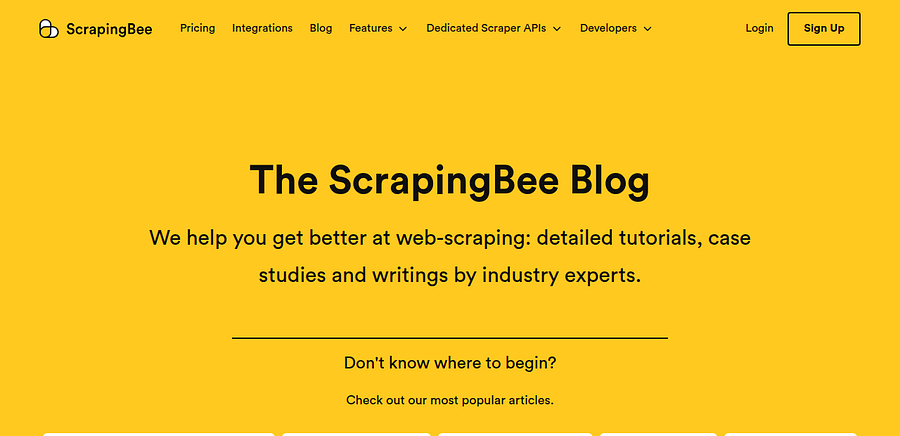
As you can see below, we have customized the image to 1280x620 pixels.
2. Using screenshot_full_page parameter
The screenshot_full_page parameter captures the entire rendered page, including content below the visible viewport.
Use the code below to capture the full page:
<?php
// Initialize cURL.
$ch = curl_init();
// Set the ScrapingBee API URL and your API key.
$BASE_URL = 'https://app.scrapingbee.com/api/v1/?';
$API_KEY = 'YOUR-API-KEY';
// Set the target URL and full-page screenshot parameter.
$parameters = [
    'api_key' => $API_KEY,
    'url' => 'https://www.scrapingbee.com/blog/',
    'screenshot_full_page' => true,
];
// Build the API request URL.
$query = http_build_query($parameters);
// Configure the cURL request.
curl_setopt($ch, CURLOPT_URL, $BASE_URL . $query);
curl_setopt($ch, CURLOPT_CUSTOMREQUEST, 'GET');
curl_setopt($ch, CURLOPT_RETURNTRANSFER, true);
// Send the request.
$response = curl_exec($ch);
// Stop if the request fails.
if ($response === false) {
    die(
        'Error: "' . curl_error($ch)
        . '" - Code: ' . curl_errno($ch)
    );
}
// Print the HTTP status code.
echo 'HTTP Status Code: '
    . curl_getinfo($ch, CURLINFO_HTTP_CODE)
    . PHP_EOL;
// Save the returned PNG image.
$file = fopen('full-page-screenshot.png', 'wb');
if ($file === false) {
    curl_close($ch);
    die('Could not create full-page-screenshot.png');
}
fwrite($file, $response);
fclose($file);
// Close the cURL resource.
curl_close($ch);
echo 'Screenshot saved as full-page-screenshot.png' . PHP_EOL;
?>
The result is a screenshot of the full page. It is a large screenshot, and you can see it here.

3. Using screenshot_selector parameter
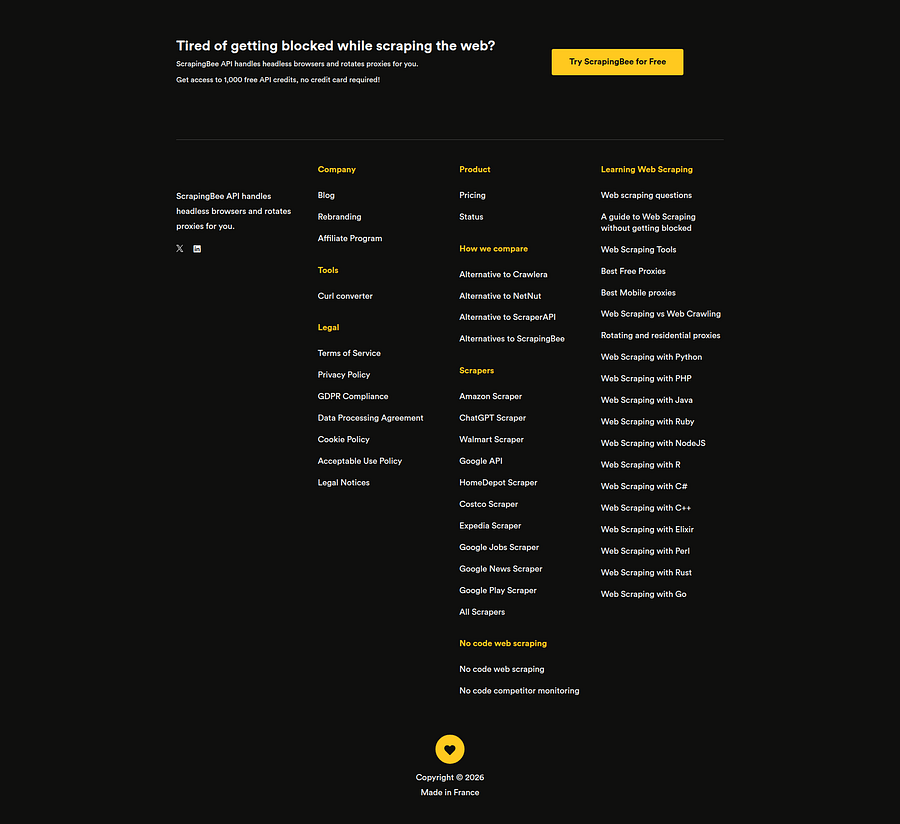
The screenshot_selector parameter captures a specific element on the page. For example, you can use footer to capture the page footer or header to capture the header.
This example captures the <footer> element on the ScrapingBee blog. We will make our request with this additional parameter: screenshot_selector="footer".
So our code will be this:
<?php
// Initialize cURL.
$ch = curl_init();
// Set the ScrapingBee API URL and your API key.
$BASE_URL = 'https://app.scrapingbee.com/api/v1/?';
$API_KEY = 'YOUR-API-KEY';
// Set the target URL and screenshot selector.
$parameters = [
    'api_key' => $API_KEY,
    'url' => 'https://www.scrapingbee.com/blog/',
    // Capture only the page footer.
    'screenshot_selector' => 'footer',
];
// Build the API request URL.
$query = http_build_query($parameters);
// Configure the cURL request.
curl_setopt($ch, CURLOPT_URL, $BASE_URL . $query);
curl_setopt($ch, CURLOPT_CUSTOMREQUEST, 'GET');
curl_setopt($ch, CURLOPT_RETURNTRANSFER, true);
// Send the request.
$response = curl_exec($ch);
// Stop if the request fails.
if ($response === false) {
    die(
        'Error: "' . curl_error($ch)
        . '" - Code: ' . curl_errno($ch)
    );
}
// Print the HTTP status code.
echo 'HTTP Status Code: '
    . curl_getinfo($ch, CURLINFO_HTTP_CODE)
    . PHP_EOL;
// Save the returned PNG image.
$file = fopen('element-screenshot.png', 'wb');
if ($file === false) {
    curl_close($ch);
    die('Could not create element-screenshot.png');
}
fwrite($file, $response);
fclose($file);
// Close the cURL resource.
curl_close($ch);
echo 'Screenshot saved as element-screenshot.png' . PHP_EOL;
?>
The result is a screenshot of the footer, as you can see below:
Each method returns a PNG file you can save directly. The ScrapingBee API handles proxy rotation and JavaScript rendering, so your PHP screenshot script works reliably even on complex websites.
Go back to tutorials