
To copy a CSS selector in Chrome, you can use the built-in DevTools inspector. This is the fastest way to get the exact selector for any element you want to scrape, automate, or extract data from.
How to Copy CSS Selector Using Chrome DevTools
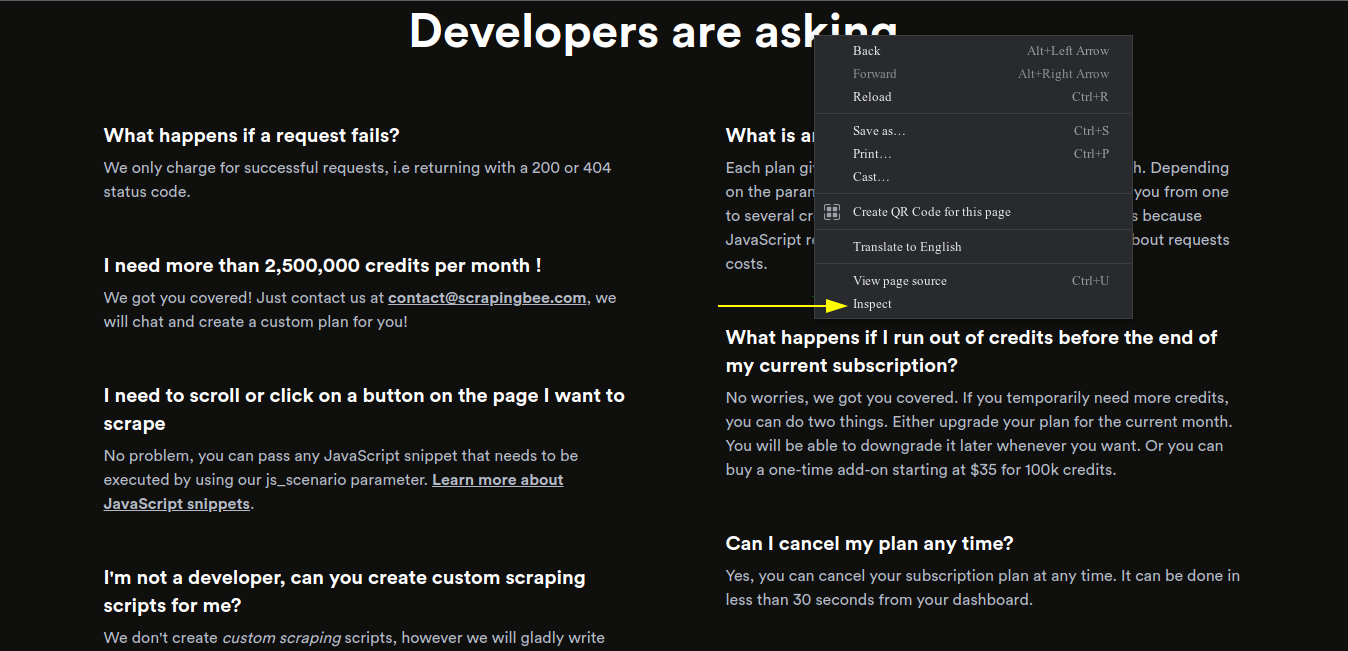
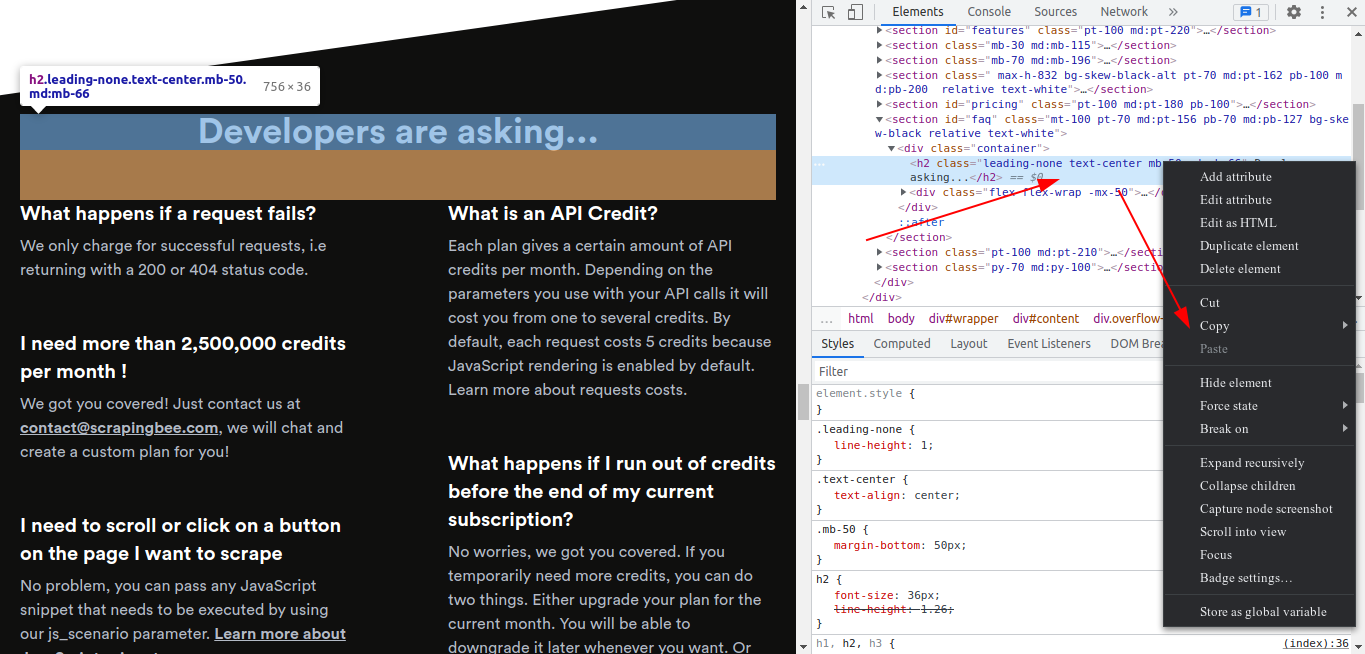
The process is straightforward. Find the element you want to scrape, right-click on it, then click Inspect Element. Chrome's DevTools will open with the element highlighted in the HTML. Right-click the highlighted code, navigate to Copy, and select Copy selector.
1. Right-click the element and select Inspect
Right-click the element on the page and select Inspect.
2. Right-click the highlighted HTML and go to Copy
In the DevTools panel, the corresponding HTML element is highlighted. Right-click it and go to Copy.
3. Click Copy selector
Click Copy selector.
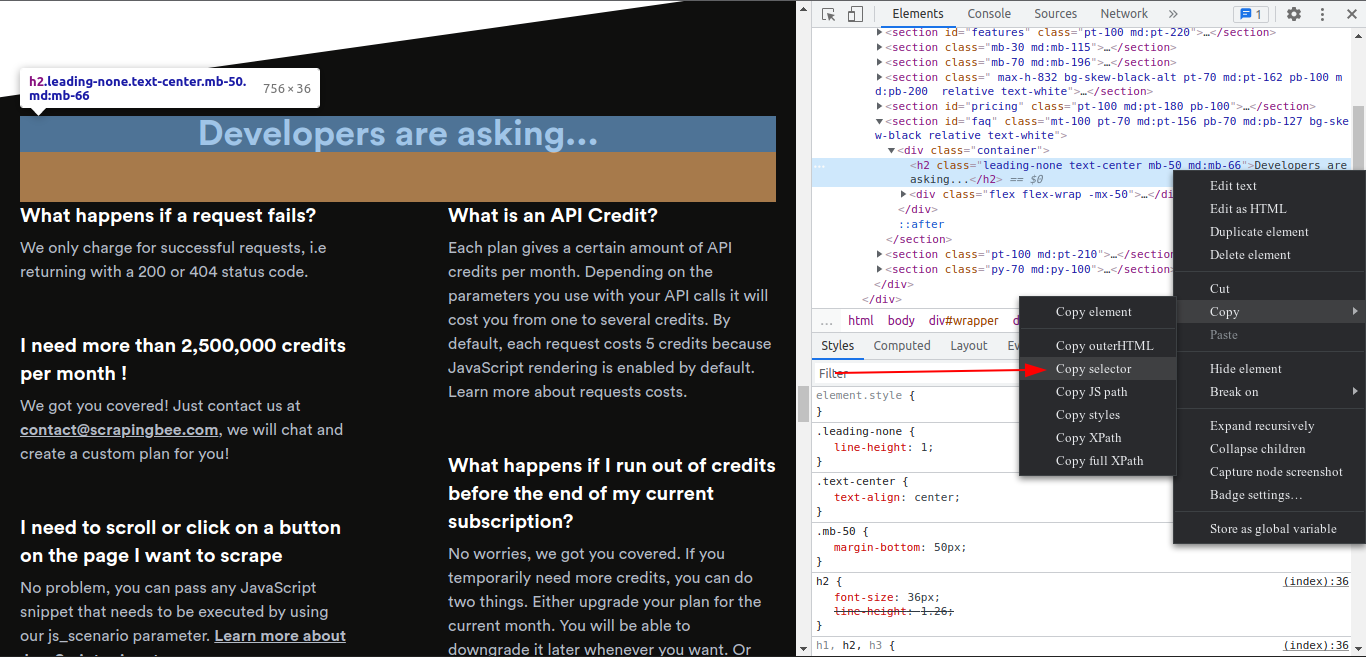
The selector is now on your clipboard. You can paste it directly into a scraping script, use it with ScrapingBee's data extraction feature, or pass it to js_scenario to interact with the element. For a full walkthrough on using CSS selectors in a scraper, see Using CSS Selectors for Web Scraping.
Alternative: CSS Selector Chrome Extensions
If you copy selectors often, you can use a CSS extractor Chrome extension instead of opening DevTools each time. Extensions like SelectorsHub and CSS Selector For Google Chrome let you click an element and copy the CSS selector in one step. They're especially useful when working with deeply nested elements where the DevTools-generated selector is long and brittle.
Go back to tutorials