When it comes to web scraping single page application architecture, dealing with heavy JavaScript rendering can be tricky. Modern websites built with frontend frameworks like React, Vue, or Angular rely heavily on dynamic APIs. Because standard HTTP requests only download the initial HTML skeleton without executing the JavaScript, you need specialized solutions to fully render the page, trigger those AJAX calls, and extract the data you actually want.
TL;DR
To scrape single page applications, you need to use a headless browser to execute the JavaScript. Set up Python with a tool like Selenium, wait for the dynamic elements to fully load, and then parse the rendered HTML to extract your target data.
Key Takeaways
- Standard scraping methods fail on SPAs because they do not execute JavaScript or background AJAX calls.
- You must use headless browser automation to fully render DOM elements exactly as a real user would see them.
- Explicitly waiting for network idleness or for specific elements to load is a mandatory step before any data extraction can begin.
What is a Headless Browser for Automation?
A headless browser is a bare engine that accesses the web without any visible interface for interaction. That is, headless browsers don't operate with a Graphic User Interface (GUI).
Typically, when you want to access the web, you open any browser such as Chrome or Brave on your device. Right from the start, you see the logo of these browsers, click on them, and further input your query into a search bar, et cetera.
Now, imagine there is no graphical object to look at while all this is going on. That is how headless browsers run.
At this point, it's important to spell this out: we mostly use headless browsers when we want our script or agent to have access to the web.
But you may wonder, what is the point of running a headless browser? It's primarily for 2 reasons:
- Faster operations, as we only want to access the content of web pages and not their aesthetics
- Ability to automate
Top Headless Browser Automation Tools
There are some good headless browser automation tools. Let's go over them:
1. Selenium
Selenium is a headless browser tool that allows developers to scrape or test applications without opening a single browser window.
At its core, Selenium has a WebDriver, which is built to interact with browsers in such a way that requests will appear so normal, as though it were a regular user scrolling the page.
You can plan user sessions in your code by specifying the opening and closing of such sessions. It supports a good number of traditional browsers, including Edge, Firefox, Chrome, and Safari.
Key Features
- Effective waiting strategies
- Supports up to 4 browsers natively
- It has a virtual authenticator
2. Playwright
Playwright is one of the most modern headless browser tools, especially with the recent support for agents. In fact, it has a dedicated MCP server so agents can have context when scraping SPAs headlessly.
Interestingly, Playwright has concurrent cross-browser support. Meaning you can run scripts, for instance, in 3 different browser simulations concurrently without each one breaking.
However, unlike Selenium, Playwright only supports 3 browser engines and 5 language bindings at the moment.
Key Features
- Up to date agentic alignment with MCP
- Allows using selectors for web page elements
- Automatic retry on assertions
- Has a test generator
3. Puppeteer
For developers fluent in JavaScript, Puppeteer is a good headless option. Like any other devtool around, Puppeteer also has an MCP to enrich your agents.
It can also fetch pre-rendered content, letting you easily crawl and/or scrape data from single-page web applications.
By the way, if for whatever reason you need a headful browser, you can easily configure Puppeteer to your specification.
A comparative downside of Puppeteer, however, is how it only supports JavaScript frameworks, thereby being incompatible with other languages outside of the JS ecosystem.
Key Features
- Headless by default
- It's the most suitable testing framework for Chrome
- Can generate screenshots natively
- Has an MCP
Headless Chrome with Python
Chrome's headless mode replaced older tools like PhantomJS and is now the standard for browser automation with JavaScript-heavy websites.
In this subheading, we will have a glimpse into how to use headless browsers. More particularly, we will narrow it down to only Selenium.
Prerequisites
Before you begin, make sure you are comfortable with the basic Python web scraping libraries used for fetching, parsing, and browser automation.
You will need to install Selenium and WebDriver Manager:
pip install selenium webdriver-manager
You also need Google Chrome installed on your system. WebDriver Manager will handle the ChromeDriver setup for you.
Taking a screenshot
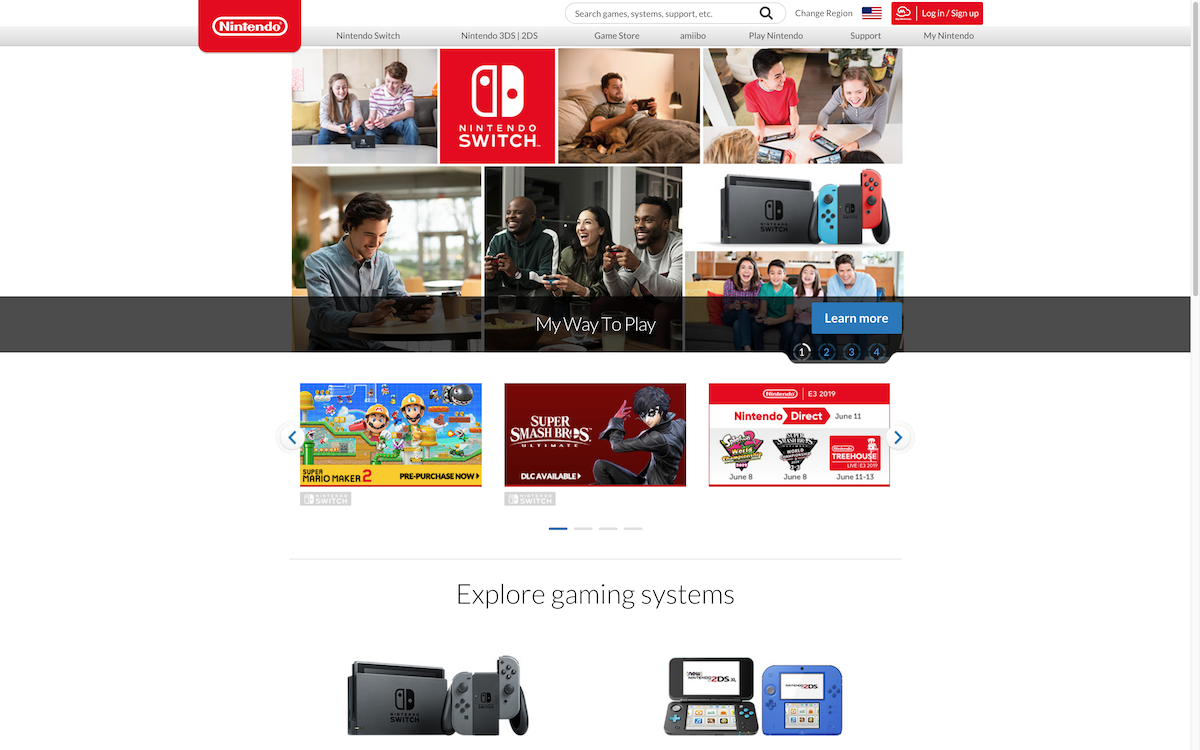
We are going to use Chrome to take a screenshot of the Nintendo's home page which uses lots of Javascript.
> chrome.py

from selenium import webdriver
from selenium.webdriver.chrome.options import Options
from selenium.webdriver.chrome.service import Service
from webdriver_manager.chrome import ChromeDriverManager

options = Options()
options.add_argument("--headless=new")
options.add_argument("--window-size=1920,1200")

driver = webdriver.Chrome(
    service=Service(ChromeDriverManager().install()),
    options=options
)

driver.get("https://www.nintendo.com/")
driver.save_screenshot("screenshot.png")
driver.quit()
The code is really straightforward, I just added a parameter --window-size because the default size was too small.
You should now have a nice screenshot of the Nintendo's home page:
Waiting for the page load
Most of the time, lots of AJAX calls are triggered on a page, and you will have to wait for these calls to load to get the fully rendered page.
A simple solution to this is to just time.sleep() for an arbitrary amount of time. The problem with this method is that you are either waiting too long or too little, depending on your latency and internet connection speed.
The other solution is to use the WebDriverWait object from the Selenium API:
from selenium.webdriver.common.by import By
from selenium.webdriver.support.ui import WebDriverWait
from selenium.webdriver.support import expected_conditions as EC
from selenium.common.exceptions import TimeoutException

delay = 10

try:
   elem = WebDriverWait(driver, delay).until(
       EC.presence_of_element_located((By.NAME, "chart"))
   )
   print("Page is ready!")
except TimeoutException:
   print("Timeout")
This is a great solution because it will wait the exact amount of time necessary for the element to be rendered on the page.
Optimizing Headless Browser Performance
The more you scrape or test JS-heavy websites, the more you discover that your requests might be taking longer before fully going through.
This is why it's better to optimize your scripts for web data only, since that is the only thing you need in the first place.
Consequently, block or ignore media assets such as animations, heavy fonts, and all other visual renderings. If you go about your headless browsing this way, your operations will be running in a matter of seconds.
Specifying Resource Type in Playwright
Playwright has an object called resource_type. You can set it to the kind of media assets you want to load. This way, your requests will automatically block the specified resources and save you some compute.
Here is an example of how to use the object:
async def block(route):
    if route.request.resource_type in {"image", "media", "font"}:
        await route.abort()
    else:
        await route.continue_()

await page.route("**/*", block)
Blocking File Extensions in Selenium
If you're working with Selenium, you can also spell out file extensions you don't want to load at all, so your requests can get straight to work.
You will have to use the setBlockedURLs to do this. After setting setBlockedURLs, then you define urls with the file extension you want to skip.
For example:
driver.execute_cdp_cmd("Network.enable", {})
driver.execute_cdp_cmd("Network.setBlockedURLs", {
    "urls": ["*.png", "*.jpg", "*.css", "*.mp4", "*.woff*"]
})
Intercept Requests in Puppeteer
With the setRequestInterception object, you can further define resource types you don't want. When your requests hit these types, they bounce off and continue to the next.
await page.setRequestInterception(true);

page.on('request', (req) => {
  if (['image', 'stylesheet', 'media', 'font'].includes(req.resourceType())) {
    req.abort();
  } else {
    req.continue();
  }
});
Conclusion
As you can see, setting up Chrome in headless mode is really easy in Python. The most challenging part is to manage it in production. If you scrape lots of different websites, the resource usage will be volatile.
Meaning there will be CPU spikes, memory spikes just like a regular Chrome browser. After all, your Chrome instance will execute un-trusted and un-predictable third-party Javascript code! Then there is also the zombie-processes problem.
If you want to know how to do this in Javascript, you'll probably like this article about how to scrape infinite scroll with Puppeteer
This is one of the reasons we started ScrapingBee, a web scraping api, so that developers can focus on extracting the data they want, not managing Headless browsers and proxies!
If you are using Selenium for more advanced Python scraping, you may also want to read our tutorial on how to use undetected_chromedriver.
And here is a recent article about the best web scraping tools on the market.
Happy Web Scraping :)
Before you go, check out these related reads:

Kevin worked in the web scraping industry for 10 years before co-founding ScrapingBee. He is also the author of the Java Web Scraping Handbook.