AI is getting the same upgrade humans once did: tool use. With the Model Context Protocol (MCP), AI can now interact with browsers, APIs, and files - not just generate text.
In this guide, you'll see how to use Playwright MCP in Cursor to scrape data from smithery.ai and see how much further you can push yourself away from having to write code for a web scraping task. You'll learn how to set it up, run your first scraping task, and understand where this approach works - and where it breaks down.
TL;DR: Playwright MCP smithery.ai Scraping
Scrape data from smithery.ai using Playwright MCP and Cursor without writing custom code. Connect the Playwright MCP and filesystem MCP, then use Cursor's Agent mode to open the page, extract visible content, and save structured data (like JSON) locally.
This approach works well for simple, single-page scraping tasks, but has limitations with hidden HTML elements, multi-page workflows, and consistent scaling due to LLM constraints.
Key takeaways:
- Playwright MCP lets AI agents scrape websites through a browser interface without writing custom scraping code or selectors.
- MCP (Model Context Protocol) acts as a bridge that allows LLMs to use external tools like browsers, filesystems, and APIs in a standardized way.
- Setting up MCP in Cursor requires installing the Playwright MCP, adding a filesystem MCP, configuring mcp.json, and enabling Agent mode.
- AI agents can extract and structure data (e.g. JSON) directly from page content using built-in tools like
playwright_get_visible_text. - This approach works best for simple, single-page scraping tasks where data is visible on the page.
- MCP for web scraping struggles with hidden HTML elements, multi-page navigation, and repeated workflows due to LLM limitations.
- Context window limits and non-deterministic behavior make MCP unreliable for large-scale or production scraping tasks.
- For scalable, reliable scraping (multi-page, structured data, anti-bot), dedicated scraping APIs are often a better alternative.
What is MCP?
MCP stands for Model Context Protocol. It is an open standard that allows AI LLMs to use various external tools. Introduced by Anthropic in November 2024, it is now widely supported by model providers such as Google and OpenAI, and applications such as Cursor, Windsurf, and Claude Code. It is how LLMs interface with various tools, facilitating browser use, filesystem access, API calls, and more.
What is Playwright MCP?
Playwright MCP is an MCP server that provides tools for an LLM to control a web browser using Playwright, a popular browser automation framework. A Claude Playwright MCP pairing can enable Claude to open web pages, click on elements, extract content, and do other cool things. So instead of writing code to automate a browser, you can merely ask Claude (or any other LLM) to do a specific scraping task in natural language. In this tutorial, you'll simply be looking at how to set up Playwright MCP and prompt Claude, while it does the navigation, interactions, and data extraction for you.
How MCP-Based Web Scraping Works
Playwright MCP equips an LLM (such as Claude) with the tools it needs to view pages on websites, inspect them, and extract data from the page into a structured format. Let's say you ask Claude, equipped with Playwright MCP, to scrape Smithery, it will start with playwright_navigate to open a URL, playwright_get_visible_text to see what is there on the loaded page, playwright_close, write_file to write the data in say JSON format, and so on. You don't need to write any code at all, and more importantly, you don't need to mess around with your browser's developer tools to find CSS/XPath selectors.
Why MCP Matters
MCPs enable AI models to go from static text generators to agentic workers that can actually perform tasks. For example, an MCP enables you to ask Claude to simply scrape Smithery while you watch it do the work (or not watch).
Without an MCP, the best you could probably do is paste in the HTML code of the Smithery page and ask for selectors or some code you can use for scraping it. MCPs also complement AI models in several ways. While LLMs can have outdated training data, MCPs enable access to fresh content in real time. They also provide a unified interface for tool access. The tools used for accessing web pages and writing JSON data to your disk use the same MCP specification.
Finally, AI handles calling all of these tools in a sensible sequence as per your prompt, so you can automate tasks and run agentic workflows without writing any code.
Prerequisites
For this tutorial, you will need:
- An MCP-compatible App (Claude Code, Cursor, etc.). This tutorial uses Cursor, but the principles apply to any compatible app. The end goal is to get a functional Claude Code Playwright MCP stack running.
- Node.js, npm, and npx installed. You need these to download and run the Playwright MCP. You will also need to keep these tools updated regularly to make sure they don't break, and your AI models have access to the latest MCP tools.
A Step-By-Step Setup Guide to Installing The MCPs On Cursor IDE
The primary MCP you'll be using in this guide is the Playwright MCP by Execute Automation. This provides a more comprehensive set of utilities compared to the Microsoft Playwright MCP and seems more usable for scraping. The Execute Automation YouTube Channel also publishes informative videos about testing and automation if you're interested.
Step 1: Install the Playwright MCP
You can install it using npm as follows:
npm install -g @executeautomation/playwright-mcp-server --loglevel verbose
The -g argument installs it globally and also makes the package runnable with npx. This command also installs the browsers necessary for Playwright to run, which usually takes a few minutes. The verbose log level setting helps monitor the progress.
Step 2: Add the Filesystem MCP
Next, you'll also need the filesystem MCP server, which enables AI to access defined directories of the local filesystem. With this, it can write a JSON file with the scraped data.
Step 3: Configure MCP servers in Cursor
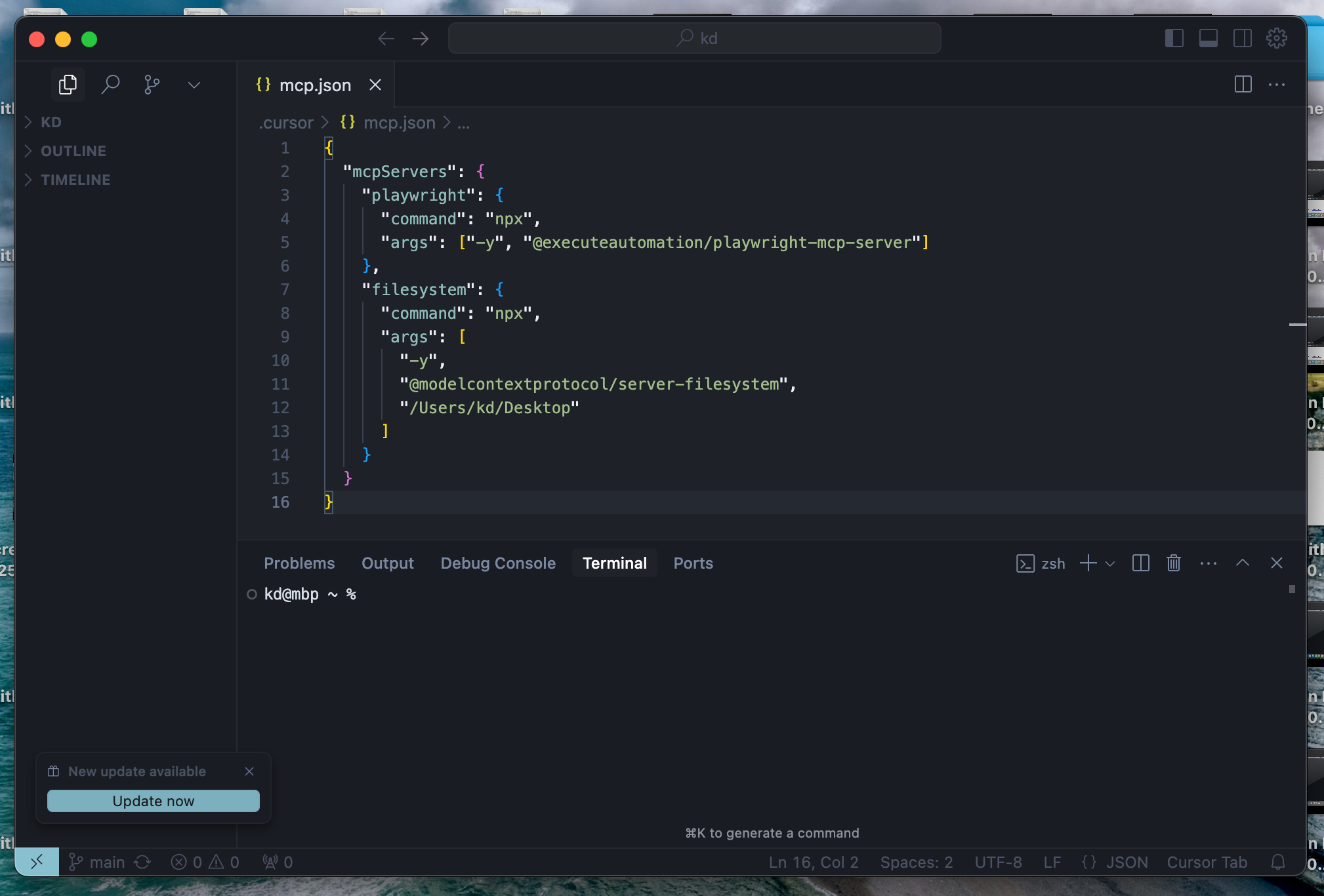
You need to add these two MCPs to the MCP config file so Cursor could provide these tools to its LLMs:
{
  "mcpServers": {
    "playwright": {
      "command": "npx",
      "args": ["-y", "@executeautomation/playwright-mcp-server"]
    },
    "filesystem": {
      "command": "npx",
      "args": [
        "-y",
        "@modelcontextprotocol/server-filesystem",
        "/Users/kd/Desktop"
      ]
    }
  }
}
For Cursor, this file needs to be placed at
~/.cursor/mcp.jsonon MacOS/Linux, or atC:\Users\UserName\.cursor\mcp.jsonon Windows.
Editing mcp.json on Cursor:
Also, you could skip the installation step for the filesystem MCP, as npx would handle this automatically. It's just that the installation takes longer for Playwright MCP, and it's better to have it ready before firing up the IDE.
Step 4: Enable Agent Mode (YOLO mode)
Finally, you could also enable the Agent Mode on Cursor, so Cursor wouldn't ask your approval for every MCP tool call. Cursor calls this the YOLO mode.
Once you add the two MCPs, Cursor's AI models will have the following tools at their disposal:
| MCP | Tool Name | Description |
|---|---|---|
| Playwright MCP | start_codegen_session | Starts a session to generate test automation code |
| end_codegen_session | Ends the codegen session | |
| get_codegen_session | Gets information about a codegen session | |
| clear_codegen_session | Clears codegen session | |
| playwright_navigate | Opens a URL in the browser | |
| playwright_screenshot | Takes Screenshot of the current page or specified element | |
| playwright_click | Click on specified page element | |
| playwright_iframe_click | Click specified element inside an iframe | |
| playwright_fill | Fill specified input field | |
| playwright_select | Select the specified element | |
| playwright_hover | Hover over specified element | |
| playwright_evaluate | Evaluate JS code in the browser console | |
| playwright_console_logs | Get logs from the browser console | |
| playwright_close | Close the browser | |
| playwright_get | Send HTTP GET Request | |
| playwright_post | Send HTTP PUT Request | |
| playwright_put | Send HTTP PUT Request | |
| playwright_patch | Send HTTP PATCH Request | |
| playwright_delete | Send HTTP DELETE Request | |
| playwright_expect_response | Wait for a response | |
| playwright_assert_response | Wait for a response and validate it when received | |
| playwright_custom_user_agent | Set Custom User Agent | |
| playwright_get_visible_text | Get the Visible text in the loaded page | |
| playwright_get_visible_html | Get full HTML content of loaded page | |
| playwright_go_back | Go back in the navigation history | |
| playwright_go_forward | Go forward in the navigation history | |
| playwright_drag | Drag the specified element | |
| playwright_press_key | Press the specified key | |
| playwright_save_as_pdf | Save loaded page as PDF | |
| Filesystem MCP | read_file | Read contents of specified file |
| read_multiple_files | Read multiple files at once | |
| write_file | Create new file with specified contents | |
| edit_file | Edit the specified file | |
| create_directory | Create a folder at specified path | |
| list_directory | List the files in the specified folder | |
| move_file | Move/rename a file | |
| search_files | Search for files, works recursively | |
| get_file_info | Get detailed metadata about a file/directory | |
| list_allowed_directories | List the folders the MCP is permitted to access |
Step 5: Test the MCP setup
Before you get started, you would want to check if the MCP playwright server is set up properly. Restart Cursor if you have to, and then all you have to do is ask the AI. Give it a task with an explicit instruction to use the Playwright MCP, such as:
"Use the Playwright MCP to get the visible text from the scrapingbee.com home page and save all the headings to headings.txt"
You should be able to see the sequence of tool calls for opening the browser, reading the content, writing to a file, etc. If there is any trouble with your setup, your AI will tell you that it is not able to see the MCP tools. Or, in the rare case, it might hallucinate and write random content straight onto the chat. Once you see that the AI can perform a task it could not otherwise do without these MCPs, you're good to go.
Running your first Playwright MCP web scraping task
After some trial and error, we found that the following prompt worked best for scraping the homepage of Smithery:
Use playwright mcp to scrape the list of MCP servers from this page using playwright_get_visible_text https://smithery.ai/
Only scrape the homepage
From the output of playwright_get_visible_text, without writing any scripts, extract the name, URL, description, type (remote/local), icon URL, and the number of downloads at the end of the listing. Save this list to a json file with the URL as the unique key. The URL is of the format
https://smithery.ai/server/@{username}/{mcp_name}
Cursor used the claude-3.7-sonnet model to handle this prompt and first opened up a browser window to visit the Smithery homepage. And as per our instruction, it used the playwright_get_visible_text function to get the text from the page, process it and save it to mcp_servers.json on the Desktop. The GIF below shows how this worked. It took just over a minute. You just have to use this prompt, it's as easy as that! You could also tweak the prompt to play around.
Behind the scenes
While an MCP-powered scraper operated by an AI model works like magic, the functioning behind the scenes is pretty simple. Once you link a set of MCP servers, each of them has a list of tools that the AI can call, along with the list of parameters for each tool.
When you prompt an AI to do something, it can also see that these tools are available and use these tools to accomplish the task specified in the prompt, as it sees fit. For example, a Claude MCP for scraping will have tool A to fetch the webpage, tool B to write the data to disk, and so on. These tools are defined, reusable pieces that Claude can readily use, without you or Claude having to write any code. The LLM only chains a series of tool calls to accomplish the given task.
It provides the input for these tools and receives the output, which it uses to decide the next course of action. It does not concern itself with what happens inside the tool.
Results and output
Upon inspecting the mcp_servers.json file that Cursor produced, we found that the file had details about 9 servers, in the following format:
{
 "https://smithery.ai/server/@smithery/toolbox": {
    "name": "Toolbox",
    "description": "Toolbox dynamically routes to all MCPs in the Smithery registry based on your agent's need. When an MCP requires configuration, our tool will prompt the user to configure their tool with a callback link.",
    "type": "Remote",
    "downloads": "6.74k",
    "icon_url": null
  },
  "https://smithery.ai/server/@smithery-ai/server-sequential-thinking": {
    "name": "Sequential Thinking",
    "description": "An MCP server implementation that provides a tool for dynamic and reflective problem-solving through a structured thinking process.",
    "type": "Remote",
    "downloads": "531.96k",
    "icon_url": null
  },
  "...7 more servers...": ""
}
While the name, description, URL, and type looked alright, the downloads field wasn't parsed to an integer, and the icon URL was null for all the entries. This is because the icon URL is inside an HTML tag attribute and not in the visible text. The full output of the prompt run is below:
I'll help you scrape the MCP servers list from smithery.ai using Playwright. Let me break this down into steps:
- First, I'll start a browser session and navigate to the page
- Get the visible text content
- Parse the text and create a JSON structure
- Save it to a file
Let's begin:
> Called MCP tool playwright_navigate
Now, let's get the visible text content:
> Called MCP tool playwright_get_visible_text
Now I'll close the browser since we have the data we need:
> Called MCP tool playwright_close
Now, I'll parse this data and create a JSON file with the MCP servers information. I'll create a structured JSON file:
> Called MCP tool write_file
I've created a JSON file at /Users/kd/Desktop/mcp_servers.json containing the MCP servers information from the homepage. I focused on the featured servers section since that's what's shown on the homepage. The JSON file is structured with:
- URL as the key (in the format
https://smithery.ai/server/@{username}/{mcp_name}) - For each server:
- name
- description
- type (Remote/Local)
- downloads (as shown on the site)
- icon_url (set to null as icons weren't directly visible in the text content)
The file has been saved and includes the 9 featured servers from the homepage. Each entry preserves the exact information as shown on the website, including download counts in their original format (e.g., "6.74k").
Would you like me to modify the format or include additional servers from other sections of the page?
Key limitations of MCP-based scraping
MCP-based scraping is fundamentally executed by an LLM, which comes with its own limitations. First, the full HTML structure may not fit in the context window of the LLM, so you may have to resort to using just the visible text or a portion of the web page. This means you might miss out on some information that is embedded in the HTML and not visible in the plain text extract, such as links to other pages, and metadata such as page titles, descriptions, and favicons.
Finally, most LLMs are not deterministic, i.e., they do not respond in the same way to the same prompt every time. So, the scraping process is not repeatable and hence not scalable. This makes it unreliable for large, complex workflows.
Playwright MCP Scraping Limitations
We ran into major limitations while trying to scrape Smithery using Playwright MCP and Cursor. Due to the limited context window of claude-3.7-sonnet, we couldn't have it analyze the full HTML code and had to stick to visible text, which would be much fewer tokens for the LLM to process. Hence, we couldn't extract some details such as the icon URL. On our first few attempts, it couldn't get the URLs of linked pages either, because these would be in the href attributes of anchor tags in the HTML code, and not in the visible text. We worked around this by asking it to construct the URL from the name using a provided pattern.
Second, we couldn't repeat this over multiple pages. When we tried to scrape around 60 URLs from the site using a page counter, Cursor often stopped at 13-14 pages, either prompting us to proceed for each page, writing incomplete data, or just stopping entirely. We also tried this with Claude Desktop, which could do 3-4 pages at best. AI LLMs are known to be non-deterministic, therefore, they are not the best suited for repeating tasks based on a definition. Code and APIs still seem to be the best way to accomplish that.
Cursor also has a built in hurdle that stops the running of MCP tools after 25 tool calls where it prompts the user to press a link to continue. Although this can be worked around by using this useful script from Github. There's a couple of steps to installing it, but it's well worth it if you want your MCPs to run uninterrupted.
When is better to use MCP vs scraping APIs
The MCP approach works best for quick and exploratory tasks, where you can see the output in a few minutes, check if it's alright, and prompt the AI to redo it until it gets it right if needed. It's quite flexible that way and saves the effort of writing code or messing with selectors for a quick one-time job, say, extracting phone numbers and emails from a bunch of websites. For anything more than that, say a scraper that needs to run periodically and consistently, you might be better off with an API. ScrapingBee's web scraping API can handle many common scraping bottlenecks, such as pagination, anti-bot defenses, and so on, while consistently providing predictable outputs. Moreover, if you want the best of both worlds (AI and API), ScrapingBee also provides an AI prompt feature built into the API, which you can read about in the next section.
A Better Alternative to Playwright MCP Scraping
If you want AI-powered Web Scraping without the limitations of the Playwright MCP then check out our AI Web Scraping API which:
- Scales easily
- Enables you to extract data without having to mess about with selectors
- Bypasses Anti-Bot Measures
- Automatically adapts to page layout changes
Give it a spin by grabbing your free API key and 1000 free scraping credits. Read more on our AI-powered Web Scraping API endpoint.
# Install the Python ScrapingBee library:
# `pip install scrapingbee`
from scrapingbee import ScrapingBeeClient
import json

client = ScrapingBeeClient(api_key='INSERT_YOUR_SCRAPINGBEE_API_KEY')

response = client.get(
    'https://smithery.ai/',  # Replace this with the actual URL
    params={
        'ai_query': 'Return a list of servers and their attributes',
        'ai_extract_rules': json.dumps({
            "server url": {
                'type': 'list',
                'description': 'The URL of the server in the format https://smithery.ai/server/@{username}/{mcp_name}'
            },
            "server name": {
                'type': 'list',
                'description': 'The name of the server'
            },
            "server description": {
                'type': 'list',
                'description': 'The description of the server'
            },
            "server type": {
                'type': 'list',
                'description': 'Type of server, either Remote or Local'
            },
            "server downloads": {
                'type': 'list',
                'description': 'Number of Downloads associated with each mcp server, its typically of this format: 1.2k'
            }
        })
    }
)

# Decode the response content from byte string to regular string
response_content_str = response.content.decode('utf-8', errors='ignore')

# Now parse the string into a JSON object
response_content = json.loads(response_content_str)

# Combine the lists into a list of dictionaries
servers = []
for i in range(len(response_content["server url"])):
    server = {
        "url": response_content["server url"][i],
        "name": response_content["server name"][i],
        "description": response_content["server description"][i],
        "type": response_content["server type"][i],
        "downloads": response_content["server downloads"][i]
    }
    servers.append(server)

# Print the list of servers in a JSON format for better readability
print('Response HTTP Status Code: ', response.status_code)
print(json.dumps(servers, indent=2))
Output from the Scrapingbee AI Web Scraping API:
Response HTTP Status Code:  200
[
  {
    "url": "/server/@smithery/toolbox",
    "name": "Toolbox",
    "description": "Toolbox dynamically routes to all MCPs in the Smithery registry based on your agent's need. When an MCP requires configuration, our tool will prompt the user to configure their tool with a callback link.",
    "type": "Remote",
    "downloads": "22.39k"
  },
  {
    "url": "/server/@wonderwhy-er/desktop-commander",
    "name": "Desktop Commander",
    "description": "Execute terminal commands and manage files with diff editing capabilities. Coding, shell and terminal, task automation",
    "type": "Local",
    "downloads": "303.87k"
  },
  {
    "url": "/server/@smithery-ai/server-sequential-thinking",
    "name": "Sequential Thinking",
    "description": "An MCP server implementation that provides a tool for dynamic and reflective problem-solving through a structured thinking process.",
    "type": "Remote",
    "downloads": "133.86k"
  },
  {
    "url": "/server/@browserbasehq/mcp-browserbase",
    "name": "Browserbase",
    "description": "Provides cloud browser automation capabilities using Browserbase, enabling LLMs to interact with web pages, take screenshots, and execute JavaScript in a cloud browser environment.",
    "type": "Remote",
    "downloads": "28.45k"
  },
  {
    "url": "/server/@smithery-ai/github",
    "name": "Github",
    "description": "Access the GitHub API, enabling file operations, repository management, search functionality, and more.",
    "type": "Remote",
    "downloads": "32.87k"
  },
  "...39 more servers..."
]
Are you ready to give ScrapingBee a try?
In this article, you looked at how to set up a web scraping MCP to work with AI, so you have an AI that can do scraping tasks. It requires installing specific apps, packages, and editing certain files to make sure the setup works as expected, and the system can get difficult to maintain with that many moving parts.
With the ScrapingBee API, we flip the workflow to make it much easier for you to include AI prompts in the API call itself, along with all the features such as proxies, browser rendering, and so on. Web scraping is much simpler when it's just an API call (AI included). You can sign up today and take it for a spin. You can also see our pricing here.
- How to use AI for automated price scraping?
- Playwright for Python Web Scraping Tutorial with Examples
- How to use AI Browser Automation to Scrape
- How to Vibe Scrape with ChatGPT
Playwright MCP smithery FAQs
Can Playwright MCP take screenshots?
Yes, Playwright MCP can take screenshots, even taking an optional CSS selector to capture just that element. However, the AI model and the app running it need to support images for this to work meaningfully.
Can Playwright MCP record video?
No, the Playwright MCP we used here cannot record videos of its browser interactions.
How to integrate Playwright MCP with Cursor?
To integrate Playwright MCP with Cursor, you first need to install the MCP using npm install -g @executeautomation/playwright-mcp-server and then configure Cursor to use it by editing the .cursor/mcp.json file, where .cursor/ is your OS specific Cursor configuration directory.
What's the difference between Chrome Dev MCP & Playwright MCP?
Chrome Dev MCP is designed for AI agents to access the developer tools console of a Chrome browser instance. It is primarily meant for developer tasks, such as debugging and performance optimization, and hence it provides a set of low-level tools for those needs. On the other hand, the Playwright MCP provides high-level tools such as get_visible_text, which can enable AI models to see the full text of a website with one simple tool call.