The quickest way to scrape data from a website into Excel is to use Excel's built-in Power Query tool, which provides a From Web connector for pulling tables directly from web pages. But for complex websites that load content dynamically or block bots, you'll often need to call a scraping API from Power Query or Visual Basic for Applications (VBA) instead.
This guide walks through each method step by step, explaining when to use each one so that you can choose the best approach for your project.
Key takeaways
- Power Query's From Web connector is the fastest built-in way to pull website tables into Excel (Windows only).
- Excel's web import methods do not run JavaScript. For dynamic or bot-protected pages, call the ScrapingBee API from Power Query or VBA.
- Queries can refresh on open or every N minutes via Connection Properties, so there's no manual re-importing.
- Internet Explorer VBA automation is obsolete. Modern VBA scraping sends MSXML2.XMLHTTP requests instead.
Method 1: Manually copy-pasting data
Sometimes the simplest approach is all you need. If you're working with a small amount of data, manual copy-pasting can be the fastest way to get it into Excel. It's straightforward and doesn't require any special tools or setup.
When to use it:
- Small data sets: If you only need to pull a few rows or a small table, it's quicker to just select and paste.
- No repeated updates: Ideal when you don't expect the website data to change often.
- Quick one-offs: If you just need to grab a snapshot of data without automation.
How to do it:
- Select the data: Open the website, and highlight the text or table you want to copy.
- Copy: Right-click and select Copy, or use the shortcut Ctrl + C.
- Open Excel: Go to the Excel sheet where you want to insert the data.
- Paste: Right-click in a cell and select Paste, or use Ctrl + V. Excel will usually recognize table formats and adjust the cells automatically.
Pros and cons:
Pros:
- No setup, no coding.
- Perfect for small, static data sets.
- Great for capturing text or single tables quickly.
Cons:
- Tedious for large or complex data.
- Prone to human errors if you miss a cell or copy incorrectly.
- Doesn't work well if the site's layout changes often.
When to move on:
If you find yourself repeating this process regularly or dealing with large tables, it's probably time to move to a more automated solution. Check out the next methods for a smoother workflow!
Method 2: Using Excel Power Query (From Web)
The quickest built-in way to import data from a website into Excel is Power Query, especially if you're pulling from static, well-structured pages containing tables or lists, such as Wikipedia pages, stock tables, or general listing pages.
Power Query is available directly in Excel via the Data tab and requires no coding. Once you set it up, you can refresh the data with a single click instead of repeating the process whenever your target page adds new data.
When to use it:
- Table data: Great for structured data like tables on HTML pages.
- Automated updates: If the data on the webpage changes periodically, you can refresh your query to pull in the latest info without redoing the setup.
- No coding required: If you want automation but aren't comfortable with VBA or scripting, Power Query is a nice middle ground.
How to set it up:
1. Open the From Web connector:
Navigate to Data > Get Data > From Other Sources > From Web. The latest Excel versions show a From Web button on the Data tab ribbon; you can use that shortcut instead. Both open the same dialog box.
2. Enter the target URL:
Paste the URL of the page you want to scrape and click OK to connect.
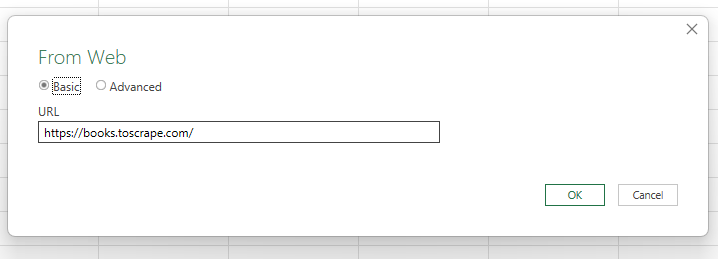
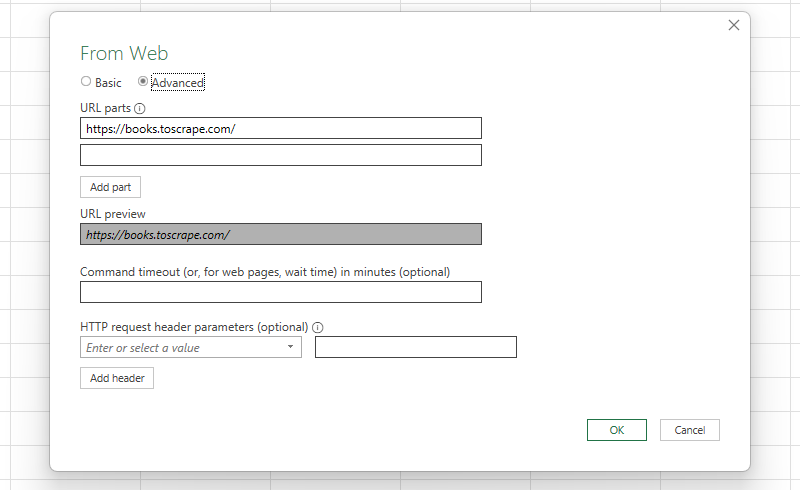
If you need to add request header parameters, timeouts, or build your URL from separate parts, select Advanced instead.
3. Choose an authentication method:
After clicking OK, Power Query will ask you to select an authentication method: Anonymous, Windows, Basic, Web API, Organizational account. Select Anonymous when scraping public pages.
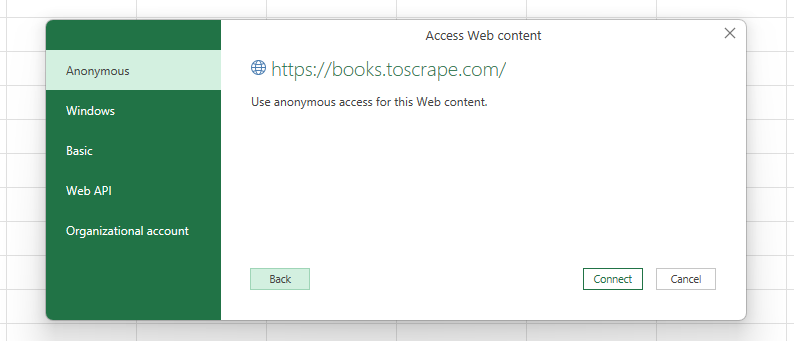
The other options are for authenticated sources: Windows for internal company sites, Basic for standard username and password, Web API for API key authentication, and Organizational account for sites requiring Microsoft work or school credentials.
4. Preview your data in the Navigator window and select table:
Once Excel connects, the Navigator window opens, listing every table it can pull from your target page. Click through the tables on your left to identify the one with the right data.
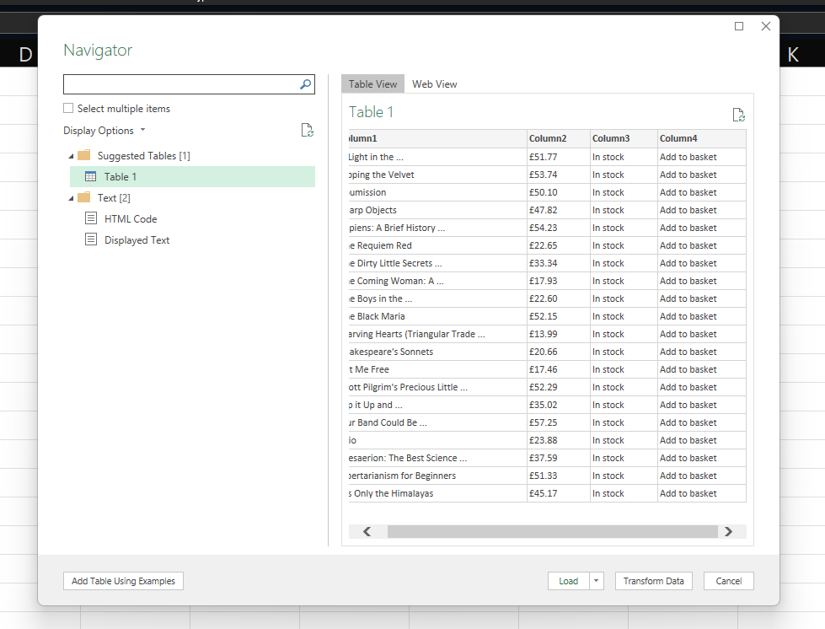
5. Create your own table:
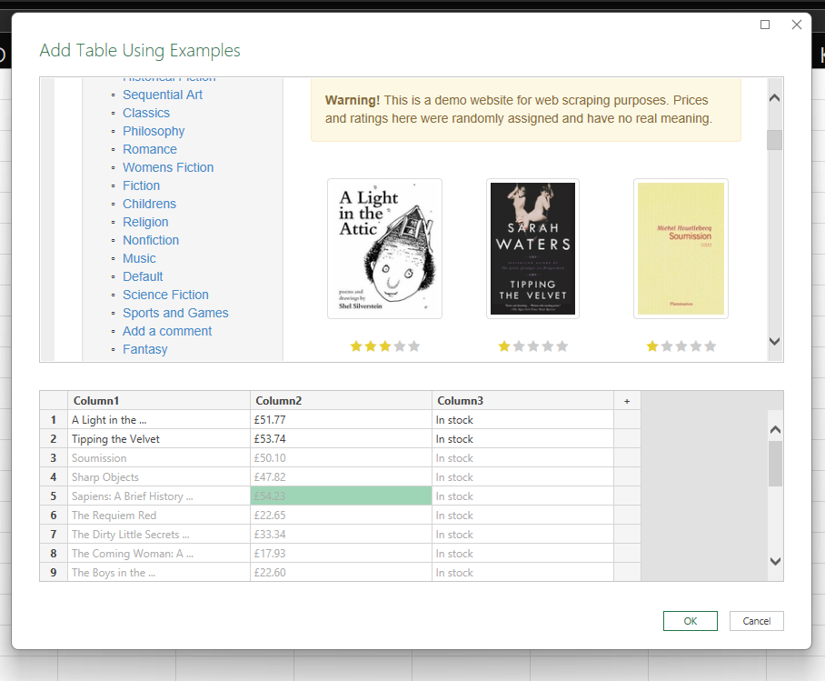
If the table you want isn't listed (this often occurs when the HTML isn't a clean table), use the Add Table Using Examples button in the lower-left of the Navigator to grab the exact data you need. This button loads the page preview on top of the Excel columns, where you can type in a few samples, and Power Query will detect the pattern and extract the rest automatically.
6. Load the data into Excel:
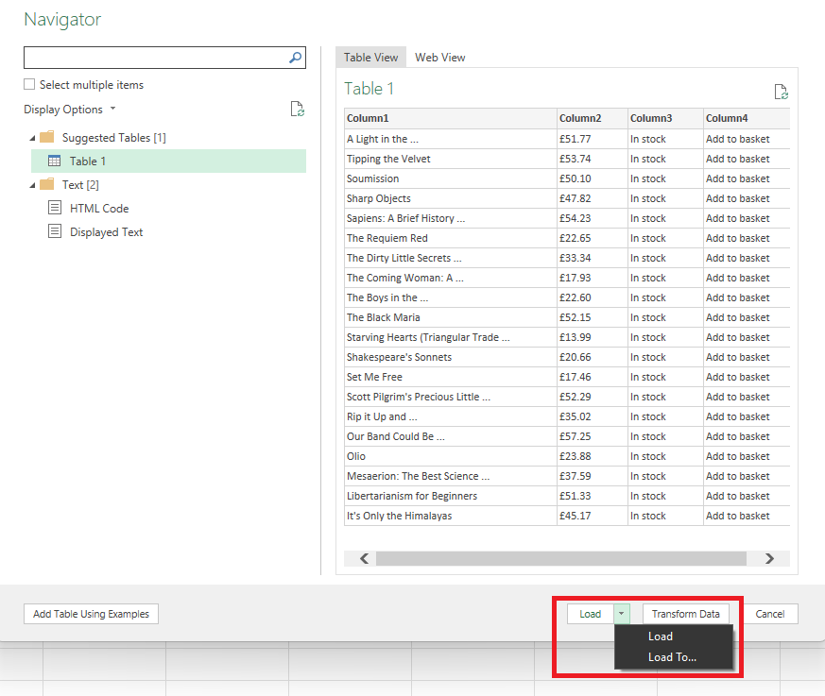
Click Load to send the data, as is, to a new worksheet, or use the dropdown arrow next to the Load button and select Load To… to send it to a specific worksheet or existing table. The Transform Data option opens the Power Query Editor, where you can clean up columns and format your table accordingly.
Note: The From Web connector described above is Windows-only. While Excel for Mac includes Power Query, it doesn't offer the Web connector, and Excel for the web only provides a Web API data source, not the full feature set.
Pros and cons:
Pros:
- No programming needed, very beginner-friendly.
- Can handle most simple table extractions.
- Built-in tools for data cleaning and transformation.
- Easily refreshed to keep your data up-to-date.
Cons:
- Limited to structured data (i.e., tables).
- Doesn't work well with dynamic content like JavaScript-generated tables.
- Some web pages may block the query, depending on permissions and site configurations.
- LibreOffice and other similar tools don't have a built-in Power Query equivalent. If you're on those platforms, you'll need to rely on more manual methods or external tools.
- The From Web connector is Windows-only, unavailable for Mac, and partially accessible in Excel for web.
When to move on:
If Power Query can't extract the data you need because the site loads content dynamically or blocks bots, call a Scraping API like ScrapingBee directly from Excel. With this approach, you can obtain the required data without leaving Excel. If you need more control over the scraping process, a script-based solution like Python might be more effective. We've covered both approaches in this article.
Refresh and Automate your Excel web queries
If you're looking for more complete automated data scraping from websites into Excel, set up automatic refreshes in Power Query.
1. Enable the Query option:
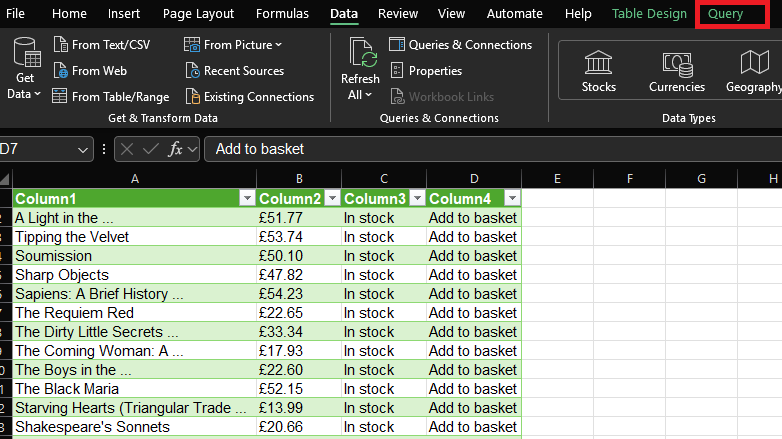
Click anywhere on your imported table to enable the Query option in the menu tab.
2. Open Query Properties and enable refresh options:
Navigate to Query > Properties to open the Query Properties window. You'll notice multiple refresh options. Enable Refresh every N minutes to automatically re-run the query at the set interval. Choose Refresh data when opening the file to force a fresh pull whenever you open the file. Refresh this connection on Refresh All is enabled by default. You can also trigger a manual refresh by clicking the Data tab and selecting Refresh All.
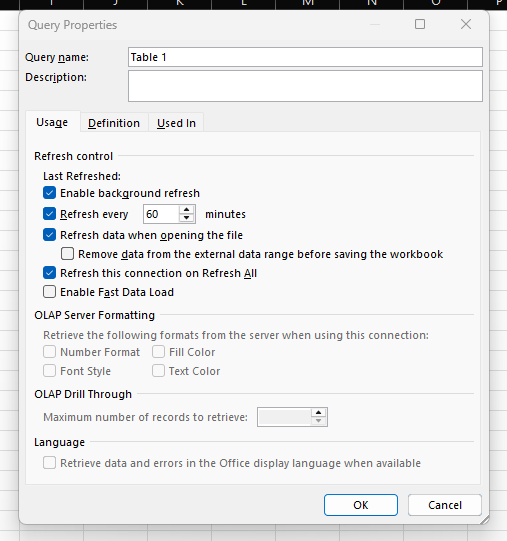
Keep in mind that all the options above only refresh data when the workbook is open. Excel currently has no built-in feature to update a closed file on a schedule. For unattended scheduled refreshes, you'll need workarounds, such as Windows Task Scheduler with a refresh macro, or Power Automate to open the file and trigger a refresh.
Method 3: Using Excel VBA (Visual Basic for Applications)
For more control than Power Query offers, you can write an Excel macro in VBA to pull data from a website. VBA is a built-in programming language for Excel that lets you write custom scripts to automate repetitive tasks, such as scraping a webpage and pulling data into your sheet.
Older tutorials for this method mostly used Internet Explorer automation (InternetExplorer.Application) to launch a browser and pull data from websites. That approach died with IE's retirement in June 2022. The current approaches involve making HTTP requests using MSXML2.XMLHTTP, no browser automation, so a VBA request never executes JavaScript.
Note: This method is specific to Microsoft Excel. LibreOffice and similar tools (like OpenOffice) do support macros, but the syntax and setup might be a bit different. So, if you're on one of those platforms, you'll have to adapt the script accordingly. Also, MSXML2 is a Windows COM object, which means this approach is Windows-only.
For more information on writing and debugging VBA scraping scripts, check out our guide on Excel VBA web scraping.
When to use it:
- Automated web queries: If you want to run a script on demand and fetch updated data directly into your sheet.
- Internal/personal use: Perfect for small projects or one-off tasks that don't require complex error handling.
- Excel enthusiasts: If you're already familiar with VBA, it's a natural choice to extend your Excel capabilities.
How to set it up:
1. Enable the developer tab:
Go to File > Options > Customize Ribbon and enable Developer.
2. Open the VBA editor:
Hit Alt + F11 to open the VBA editor. Alternatively, switch to the Developer tab and click Visual Basic.
3. Create a new module:
Right-click on VBAProject in the left panel and select Insert → Module.
4. Write the VBA script:
Paste the following code snippet as a basic example that pulls data from a webpage.
Sub ScrapeWebContent()
    Dim httpRequest As Object
    Set httpRequest = CreateObject("MSXML2.XMLHTTP")

    Dim url As String
    url = "https://apastyle.apa.org/style-grammar-guidelines/tables-figures/sample-tables" ' Replace with your target URL

    ' Send HTTP GET request
    httpRequest.Open "GET", url, False
    httpRequest.send

    ' Check if the request was successful
    If httpRequest.Status = 200 Then
        ' Declare and create the htmlDoc object
        Dim htmlDoc As Object
        Set htmlDoc = CreateObject("htmlfile")

        htmlDoc.body.innerHTML = httpRequest.responseText

        ' Example: Extract all hyperlinks
        Dim links As Object
        Set links = htmlDoc.getElementsByTagName("a")

        Dim i As Integer
        For i = 0 To links.Length - 1
            ThisWorkbook.Sheets(1).Cells(i + 1, 1).Value = links(i).href
            ThisWorkbook.Sheets(1).Cells(i + 1, 2).Value = links(i).innerText
        Next i
    Else
        MsgBox "Failed to retrieve the webpage. Status: " & httpRequest.Status & " - " & httpRequest.statusText, vbCritical
    End If

    Set httpRequest = Nothing
End Sub
How the script works:
- The script uses MSXML2 to send HTTP requests.
- It parses the response via the htmlfile object.
- Then it grabs the webpage's content, fetches all the links, and pastes those into different cells.
Pros and cons:
Pros:
- Can be run entirely within Excel, no external software needed.
- Good for pulling small data snippets quickly.
- Reusable for similar tasks.
Cons:
- Can break easily if the webpage structure changes.
- Not compatible with non-Microsoft Office suites (e.g., LibreOffice, OpenOffice).
When to move on:
If you're dealing with large datasets, complex navigation, or needing more flexibility, consider using a dedicated programming language like Python. But if you just need a quick solution inside Excel, VBA will do the trick.
Call the ScrapingBee API straight from Excel
Both of the previous methods fail against dynamic pages and websites that block automated requests. To reliably pull data from those types of sources into Excel, call the ScrapingBee API straight from Excel. ScrapingBee is a Web Scraping API that handles JavaScript rendering, proxy rotation, and anti-bot bypass behind the scenes. It returns clean data you can import into Excel using the same tools you've been using: Power Query or VBA.
We'll use a basic price tracking example: pulling a product price into a cell, which you can keep refreshing using the refresh options discussed earlier.
Calling the ScrapingBee API using Power Query
In Power Query, you call a web scraping API using Web.Contents() and Json.Document(). Web.Contents() carries your scraping logic and configurations, such as API key and parameters. Json.Document() converts the returned data (JSON) into something Power Query can read and you can import into Excel.
Follow the steps below to call a web scraping API straight from Excel using Power Query.
1. Open a Blank Query:
Navigate to Data > Get Data > From Other Sources > Blank Query to open a blank query in the Power Query Editor.
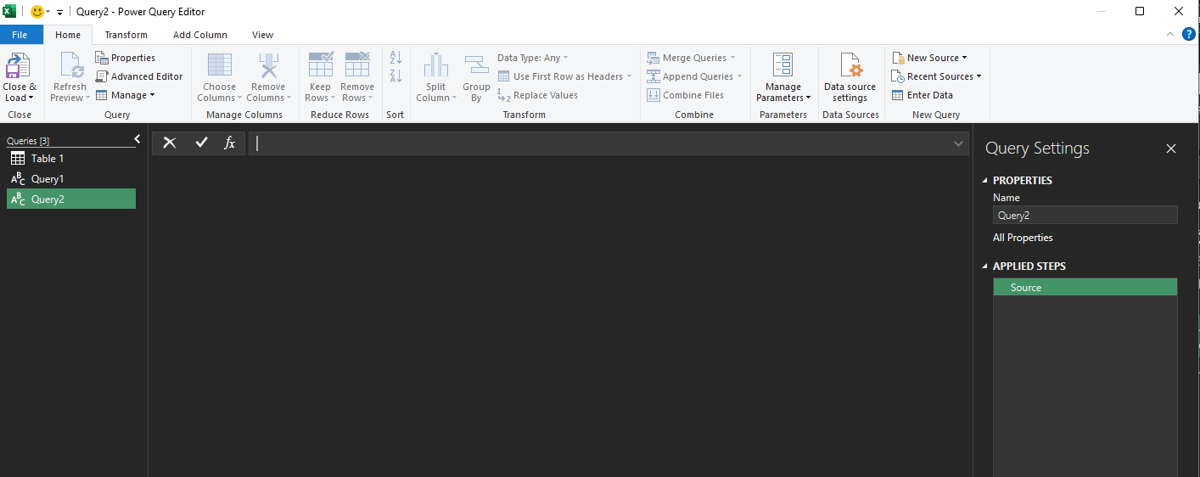
2. Call the ScrapingBee API using the Advanced Editor:
In the Home tab, select the Advanced Editor and replace its content with the code snippet below.
let
    ApiKey = "YOUR_API_KEY",
    TargetUrl = "https://books.toscrape.com/catalogue/a-light-in-the-attic_1000/index.html",
    Source = Web.Contents(
        "https://app.scrapingbee.com/api/v1",
        [
            Query = [
                api_key = ApiKey,
                url = TargetUrl,
                render_js = "true",
                extract_rules = "{""price"": "".price_color""}"
            ]
        ]
    ),
    JsonData = Json.Document(Source),
    Price = JsonData[price]
in
    Price
This script:
- Uses the Web.Contents() function to make a request to the target page through the ScrapingBee API.
- ScrapingBee renders the page in a browser, unlocking dynamic content, anti-bot blocks, and non-table data, none of which were accessible in the previous methods.
- ScrapingBee then extracts the product price and returns a JSON response.
- Json.Document() converts that response to a value Power Query can read.
3. Load the data into a cell:
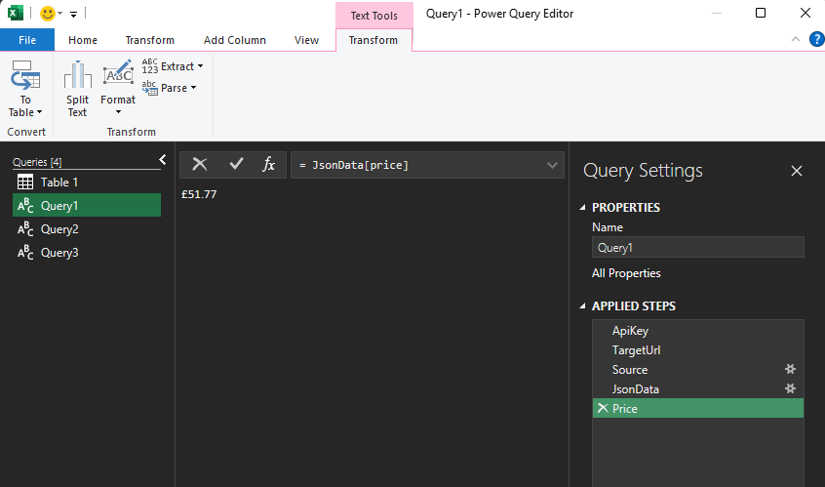
Click Done at the bottom right of the Advanced Editor. Power Query will run the Query and provide a preview pane, showing the extracted price. Use Close & Load (in the Home tab) to import the price into an Excel cell.
On the right panel, Power Query lists its Applied Steps: from the API key to the extracted data.
4. Set up refresh:
Navigate to Query > Properties to open the Query Properties window. Enable Refresh data when opening the file, and you've got a basic price tracker that updates every time you open the file.
Calling Scraping API using VBA
The VBA script below uses the same MSXML2.XMLHTTP GET request as before. It just reaches the target page via the ScrapingBee endpoint and writes the results to a cell instead of a list of links.
Sub GetPriceViaScrapingBee()
    Dim httpRequest As Object
    Set httpRequest = CreateObject("MSXML2.XMLHTTP")

    Dim apiKey As String, targetUrl As String, extractRules As String, endpoint As String
    apiKey = "YOUR_API_KEY"
    targetUrl = "https://books.toscrape.com/catalogue/a-light-in-the-attic_1000/index.html"
    extractRules = "{""price"":"".price_color""}"

    endpoint = "https://app.scrapingbee.com/api/v1?api_key=" & apiKey & _
               "&url=" & WorksheetFunction.EncodeURL(targetUrl) & _
               "&render_js=true" & _
               "&extract_rules=" & WorksheetFunction.EncodeURL(extractRules)

    httpRequest.Open "GET", endpoint, False
    httpRequest.send

    If httpRequest.Status = 200 Then
        Dim jsonResponse As String
        jsonResponse = httpRequest.responseText

        Dim priceValue As String
        priceValue = ExtractJsonValue(jsonResponse, "price")

        ThisWorkbook.Sheets(1).Cells(1, 1).Value = priceValue
    Else
        MsgBox "Request failed: " & httpRequest.Status & " - " & httpRequest.statusText, vbCritical
    End If
End Sub

Function ExtractJsonValue(json As String, key As String) As String
    Dim keyPos As Long
    keyPos = InStr(json, """" & key & """")

    If keyPos = 0 Then
        ExtractJsonValue = "Not found"
        Exit Function
    End If

    Dim colonPos As Long
    colonPos = InStr(keyPos, json, ":")

    Dim quoteStart As Long
    quoteStart = InStr(colonPos, json, """")

    Dim quoteEnd As Long
    quoteEnd = InStr(quoteStart + 1, json, """")

    ExtractJsonValue = Mid(json, quoteStart + 1, quoteEnd - quoteStart - 1)
End Function
Note that MSXML2.XMLHTTP returns a raw response text, that is, whatever the server sends back. In this case, ScrapingBee returns a JSON string, and that's what would be imported into your workbook. To get the exact value, we've added a function to strip out only the price.
We also used CSS selectors in both options. For more complex use cases where the site regularly changes structure or uses hashed class names that change on build, use ScrapingBee's AI web scraping API. That allows you to describe the data you want in plain English, and ScrapingBee will figure it out for you.
Similar to Power Query plus ScrapingBee API, this approach unlocks JavaScript-rendered pages, anti-bot blocks, and non-table data. The best part? ScrapingBee offers 1000 free API credits, more than enough to import your first data from a website into Excel.
Method 4: Using Google Sheets functions
Google Sheets offers built-in functions, such as IMPORTHTML, IMPORTXML, and IMPORTDATA, for pulling data directly into your spreadsheet. Excel has no such formulas; the closest to this is Power Query, which we've covered.
This approach is a solid option for capturing structured data such as tables or lists, and once the data is in Google Sheets, you can easily convert it to Excel if needed, with no coding required. That said, Google Sheets' functions share Power Query's limits: no JavaScript-rendered pages, anti-bot blocks, and incomplete access to non-table data.
For a deeper dive into Google Sheets' strengths and weaknesses, check out our guide on web scraping with Google Sheets.
When to use it:
- For simple table data: Ideal for quickly pulling in tables or lists without any complex setup.
- Small data sets: Great for lightweight extraction when you don't need advanced transformations.
- Public or accessible data: Works best when the data is not blocked by login pages or complex JavaScript.
How to set it up:
- Open a Google Sheet:
Go to Google Sheets and create a new spreadsheet.
- Use the IMPORTHTML function:
Use the following syntax:
=IMPORTHTML(url, query, index)
For example:
=IMPORTHTML("https://example.com/sample-table", "table", 1)
This pulls the first table from the given URL.

- Use the IMPORTXML Function:
Use the following syntax:
=IMPORTXML(url, xpath_query)
For example:
=IMPORTXML("https://example.com/sample-page", "//h1")
This pulls all <h1> headers from the page using an XPath query.
- Use the IMPORTDATA Function:
Syntax:
=IMPORTDATA(url)
Use this if the data is available as a downloadable .csv or .txt file. For example:
=IMPORTDATA("https://example.com/data.csv")
- Load data into Excel:
Once you've imported the data, you can download the sheet as an Excel file by going to File > Download > Microsoft Excel (.xlsx).
How it works:
Each function sends a request to the given URL and extracts data based on the specified parameters:
- IMPORTHTML: Fetches HTML tables or lists (
<table>or<ul>/<ol>). - IMPORTXML: Uses XPath queries to target specific elements within the HTML structure.
- IMPORTDATA: Downloads and imports a .csv or .txt file directly into the sheet.
Pros and cons:
Pros:
- No coding skills needed—just a few straightforward formulas.
- Automatically updates when the source data changes.
- Easily shareable or exportable to Excel with Google Sheets' built-in options.
Cons:
- Limited to public data; won't work with login-protected or dynamically rendered content.
- XPath queries can be difficult to set up if the page structure is complex.
- May break if the site structure changes or if the data is behind a paywall.
When to move on:
If the data you need is behind a login, requires pagination handling, or is dynamically generated with JavaScript, you'll need to look at more robust options like Python scripts.
Method 5: Scraping with Python
If you want full control over your web scraping and don't mind writing a bit of code, Python is your best bet. It's highly flexible, has plenty of libraries to make the job easier, and works well for both simple and complex projects.
Note that this method uses a regular, local Python installation running outside of Excel, not Excel's built-in (=PY()) feature, which runs in a network-isolated container with no internet access and cannot scrape or call APIs.
For this section, we'll walk through a basic example using ScrapingBee's Python client to fetch data and BeautifulSoup to parse it. By the end, we'll save the extracted data into an Excel file using pandas. ScrapingBee handles many of the challenges you'd normally face with basic HTTP requests, such as bypassing CAPTCHAs, using premium proxies, and handling JavaScript rendering.
When to use it:
- Complex data extraction: If the website uses dynamic content, has nested tables, or you need to pull specific elements.
- High flexibility: When other tools don't offer the level of control you need.
- Automated scripts: For scenarios where you want to run the scraping on a schedule or from a server.
Setting up the environment
Before we jump into the code, there's one big challenge to consider: scraping without getting blocked. Websites often have measures in place to detect and block scrapers, which can quickly become a headache if you're just trying to pull some data. We've discussed these challenges in more detail in a previous article, but here's a simple way to avoid getting blocked while scraping: use ScrapingBee's premium proxies.
First, register on ScrapingBee for free and grab your API key. We offer 1,000 free credits to get started, and this premium-proxy setup costs about 25 credits per request. Once you've signed up and logged in, head over to your dashboard and copy your unique API token.
Now, let's update our script to use ScrapingBee. You won't need to set up custom proxies or handle CAPTCHAs. ScrapingBee will handle them in the background.
Make sure you have Python installed and set up. Then install the required libraries:
pip install scrapingbee beautifulsoup4 pandas openpyxl
Writing the script
Let's say you want to scrape a sample website with some table data. Here's a simple script to get you started:
from scrapingbee import ScrapingBeeClient
from bs4 import BeautifulSoup
import pandas as pd

# Step 1: Set up ScrapingBee client with your API key
client = ScrapingBeeClient(api_key="YOUR_SCRAPINGBEE_API_KEY")

# Step 2: Fetch the webpage content using ScrapingBee
url = "https://example.com/sample-table"
response = client.get(
    url,
    params={
        'premium_proxy': True,  # Use premium proxies for better success rate
        'block_resources': True,  # Block images and CSS to speed up the request
        'country_code': 'us',  # Request from a specific country
    }
)

# Step 3: Parse the HTML content using BeautifulSoup
soup = BeautifulSoup(response.text, 'html.parser')

# Step 4: Find the table and extract rows
table = soup.find('table')  # Assuming there is a <table> element in the HTML
rows = table.find_all('tr')

# Step 5: Extract the data into a list of dictionaries
data = []
for row in rows:
    cols = row.find_all('td')
    data.append([col.text.strip() for col in cols])

# Step 6: Create a DataFrame and save to Excel
df = pd.DataFrame(data, columns=["Column1", "Column2", "Column3"])  # Adjust column names as needed
df.to_excel("output.xlsx", index=False)
print("Data successfully scraped and saved to 'output.xlsx'.")
How the script works:
- Set up ScrapingBee: Initialize the ScrapingBee client with your API key.
- Fetch the web page: Use client.get() to send the request, while leveraging advanced parameters like premium proxies and resource blocking.
- Parse with BeautifulSoup: BeautifulSoup helps us navigate the HTML structure and locate the desired table.
- Extract data: We go through each row (
<tr>) in the table and grab the text from each cell (<td>). - Create an Excel file: With pandas, we load the data into a DataFrame and export it to an Excel file.
Pros and cons:
Pros:
- High flexibility and control over what data to extract.
- Can handle more complex scenarios (nested elements, multiple pages, etc.).
- ScrapingBee takes care of tough challenges like CAPTCHAs and IP blocking.
- This method is entirely script-based, so it doesn't depend on the office suite you're using. As long as you can run Python, you're good to go.
Cons:
- Requires coding skills and some understanding of HTML.
- Some advanced features (like premium proxies) consume more credits.
- Needs a bit more setup compared to built-in Excel tools.
When to move on:
If you need to scrape a lot of data on a regular basis, or want to avoid handling dynamic content manually, consider more robust frameworks like Selenium or exploring additional options provided by ScrapingBee's advanced API features.
Method 6: Using APIs instead of scraping
Before diving into scraping, it's always worth checking if the website has an API (Application Programming Interface). APIs provide a direct way to access data in a structured format, which is far more reliable and efficient than scraping HTML pages. Using an API lets you avoid messy HTML parsing, dynamic content, and anti-scraping mechanisms.
When to use it:
- Available API: If the site offers an API, it's almost always the best option. Check their documentation or developer page for details.
- Cleaner and faster: APIs are built to deliver data in a streamlined way, so you get exactly what you need without dealing with the overhead of HTML.
- Avoid legal issues: APIs are designed for data sharing, so you're less likely to encounter legal problems compared to scraping.
Finding an API
- Check the website's footer or documentation: Websites like Reddit, Twitter, and many news sites have public APIs. Look for a "Developers" or "API" section at the bottom of the page.
- Use browser DevTools: Open your browser's DevTools (F12 or Ctrl + Shift + I), go to the Network tab, and look for calls made to endpoints like /api/ as you navigate the site.
- Search the web: Try searching
[website name] APIorpublic API for [topic]to see if there's already an open source or public API available.
Writing a Python script to pull data from an API
Here's how to use ScrapingBee's Python client to pull data from an API and save it to Excel. Let's say we're using a mock API endpoint to grab user data:
- Install required libraries: Make sure you have
scrapingbeeandpandasinstalled:
pip install scrapingbee pandas openpyxl
- Write the script:
from scrapingbee import ScrapingBeeClient
import pandas as pd

# Step 1: Set up ScrapingBee client
client = ScrapingBeeClient(api_key="YOUR_SCRAPINGBEE_API_KEY")

# Step 2: Define the API endpoint
url = "https://jsonplaceholder.typicode.com/users"  # Replace with your target API

# Step 3: Fetch the data
response = client.get(url)

# Step 4: Check if the request was successful
if response.status_code == 200:
    data = response.json()  # Convert the response to a Python dictionary

    # Step 5: Create a DataFrame
    df = pd.DataFrame(data)

    # Step 6: Save the DataFrame to an Excel file
    df.to_excel("api_output.xlsx", index=False)
    print("Data successfully pulled from API and saved to 'api_output.xlsx'.")
else:
    print(f"Failed to retrieve data. HTTP Status code: {response.status_code}")
How the script works:
- Set up ScrapingBee: Initialize the ScrapingBee client with your API key.
- Define the API endpoint: Specify the URL of the API you want to pull data from. In this example, we use a mock API
https://jsonplaceholder.typicode.com/users. - Fetch the data: Use the ScrapingBee client to send a GET request to the API.
- Check the response: If the response code is 200 (success), extract the data using
.json(). - Convert to Excel: Load the data into a pandas DataFrame and save it as an Excel file.
Pros and cons:
Pros:
- Reliable and structured data format (usually JSON).
- Faster and cleaner compared to scraping.
- Avoids dealing with messy HTML or anti-scraping techniques.
Cons:
- Limited to what the API offers (might not provide all the data you want).
- Some APIs have rate limits or require authentication keys.
- Not every website has a public API available.
When to use each approach:
- Use APIs when they're available. They save time, provide clean data, and won't break if the site's layout changes.
- Use scraping if the data you need isn't exposed through an API or if the API is restricted (e.g., requiring paid access).
If you're scraping a website regularly, it's worth checking if you can get access to an API (even a private one) to simplify your workflow and ensure long-term stability.
Scrape any website into Excel with ScrapingBee
ScrapingBee handles JavaScript rendering, proxy rotation, CAPTCHAs, anti-bot blocks, and more. It also returns structured JSON that you can quickly import into your Excel sheet using Power Query or VBA.
The 1000 free credits you get when you sign up, no credit card required, give you enough room to test your use case before committing.
Excel web scraping FAQs
Can Excel scrape data from a website?
Yes. Power Query's From Web connector imports static HTML tables straight into a sheet and refreshes them on demand, no code needed. For JavaScript-rendered or bot-protected pages, Excel needs help: call a scraping API like ScrapingBee from Power Query or VBA and load the structured response instead.
How do I pull data from a website into Excel automatically?
First, import the data once using Power Query. Then right-click the query, open Connection Properties, and enable 'Refresh every N minutes' or 'Refresh data when opening the file'. That instructs Excel to refresh the data every time you open the workbook. For unattended schedules, use Windows Task Scheduler with a refresh macro or Power Automate.
Does Power Query's From Web work on Mac or Excel for the web?
Mostly no. The From Web connector is Windows-only: Excel for Mac includes Power Query but not the Web connector, and Excel for the Web offers only a Web API source.
Can I scrape a website into Excel without coding?
Yes. Power Query is fully point-and-click for static tables, and no-code web scraping tools can export CSV files that open straight in Excel. ScrapingBee's AI-powered extraction goes further: describe the data you want in plain English, and it returns structured results without selectors or scripts.
Can I use an Excel formula like WEBSERVICE to get web data?
On Windows, yes - WEBSERVICE pulls a URL's response into a cell, and FILTERXML parses XML out of it with XPath. Both functions aren't functional on Mac and in Excel for the web, only work with unauthenticated requests, and can't parse JSON natively, so they suit simple XML feeds rather than real scraping.

Ilya is an IT tutor and author, web developer, and ex-Microsoft/Cisco specialist. His primary programming languages are Ruby, JavaScript, Python, and Elixir. He enjoys coding, teaching people and learning new things. In his free time he writes educational posts, participates in OpenSource projects, tweets, goes in for sports and plays music.