To parse JSON in Python, you can use the built-in json module. Use json.loads() to parse a JSON string and json.load() to read JSON from a file or another file-like object. If you're working with an HTTP response returned by the Requests library, you can usually parse its JSON body with response.json().
In this guide, you'll learn how to use each of these methods, access values in parsed JSON objects and arrays, handle common parsing errors, and convert Python objects back to JSON.
Key takeaways
- Use
json.loads()to parse a JSON string andjson.load()to parse JSON from a file. - With Requests, use
response.json()to parse a JSON response. - A JSON object is typically converted to a Python
dict, while a JSON array becomes alist. - Catch JSON decoding errors when the input may be empty, invalid, truncated, or not actually contain JSON.
What Is JSON?
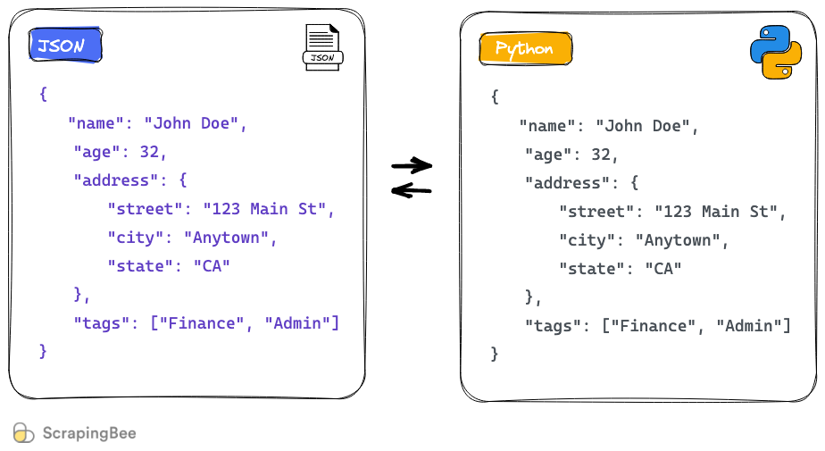
JSON (JavaScript Object Notation) is a text-based format for storing and exchanging structured data. It represents data using objects, arrays, strings, numbers, booleans, and null. JSON is language-independent and is commonly used for API responses and other data exchanged between applications.
Here is an example of JSON data:
{
    "name": "John Doe",
    "age": 32,
    "address": {
        "street": "123 Main St",
        "city": "Anytown",
        "state": "CA"
    },
    "tags": ["Finance", "Admin"]
}
When Python parses JSON, JSON values are converted to the corresponding Python types:
| JSON | Python |
|---|---|
| object | dict |
| array | list |
| string | str |
| number (integer) | int |
| number (real) | float |
true | True |
false | False |
null | None |
JSON is widely used because it is compact, human-readable, and supported across programming languages. In Python, the built-in json module provides the tools you need to parse and generate JSON data.
Convert JSON to Python (Parse a JSON String or File)
Python includes the json module for working with JSON data. Parsing, also called deserializing, means converting JSON text into the corresponding Python values, such as dictionaries, lists, strings, and numbers.
To use the module, import it with:
import json
The method you use depends on where the JSON data comes from. Use json.loads() for JSON text stored in a string and json.load() for JSON read from a file or another file-like object.
Parse a JSON String With json.loads()
The json.loads() function accepts JSON text and returns the corresponding Python value. For example, suppose you have the following JSON string:
json_string = """
{
    "name": "John Doe",
    "age": 32,
    "address": {
        "street": "123 Main St",
        "city": "Anytown",
        "state": "CA"
    },
    "tags": ["Finance", "Admin"]
}
"""
You can parse it with json.loads():
import json

json_string = """
{
    "name": "John Doe",
    "age": 32,
    "address": {
        "street": "123 Main St",
        "city": "Anytown",
        "state": "CA"
    },
    "tags": ["Finance", "Admin"]
}
"""

parsed_json = json.loads(json_string)

print(parsed_json["address"]["street"])
# Output: 123 Main St
In this example, the top-level JSON object becomes a Python dictionary, so you can access its values using dictionary keys. Nested JSON objects become nested dictionaries, and JSON arrays become Python lists.
You can learn more about json.loads() in the Python documentation.
Parse a JSON File With json.load()
If your JSON data is stored in a file, use json.load() instead of json.loads().
Suppose you have a profile.json file containing:
{
    "name": "John Doe",
    "age": 32,
    "address": {
        "street": "123 Main St",
        "city": "Anytown",
        "state": "CA"
    },
    "tags": ["Finance", "Admin"]
}
You can read and parse the file like this:
import json

with open("profile.json", "r", encoding="utf-8") as f:
    parsed_json = json.load(f)

print(parsed_json["name"])
# Output: John Doe
The difference between json.load() and json.loads() is the type of input they work with:
json.load(file)reads JSON from a file or another file-like object with aread()method.json.loads(string)parses JSON from a string. It can also acceptbytesandbytearrayinput.
Both functions return the corresponding Python value after parsing the JSON.
Access Nested Objects and Arrays
Once JSON has been parsed, you work with regular Python data types such as dictionaries, lists, strings, numbers, booleans, and None.
For example:
import json

data = json.loads(
    '{"team": "core", "members": [{"name": "Ana"}, {"name": "Ben"}]}'
)

print(data["team"])
# Output: core

for member in data["members"]:
    print(member["name"])

# Output:
# Ana
# Ben
Here, data is a dictionary, while data["members"] is a list of dictionaries. You can access and iterate over them using standard Python syntax.
How to Parse a JSON Response From an API
APIs commonly return JSON in the response body. If you're using the Requests library, the simplest way to parse that JSON is with response.json():
# Run before proceeding:
# pip install requests
import requests

response = requests.get("https://httpbin.org/json", timeout=30)
response.raise_for_status()

data = response.json()

print(data["slideshow"]["title"])
# Output: Sample Slide Show
response.raise_for_status() checks whether the request returned an HTTP error status before the response is processed. HTTP status and JSON parsing are separate concerns: a successful HTTP response may contain invalid JSON, while an error response such as 400 or 500 may still contain a valid JSON body.
If you already have the raw response text, you can parse it explicitly with json.loads():
import json

data = json.loads(response.text)
Both approaches produce the corresponding Python value, but response.json() is usually the cleaner option when you're working directly with a Requests response.
When debugging an unexpected response, you can inspect its Content-Type header, but a missing or incorrect content type does not necessarily mean that the body cannot be parsed as JSON.
For a broader introduction to sending HTTP requests, see how to make API calls using Python. You can also compare Requests with other options in our guide to the best Python HTTP clients.
How to Handle JSON Parsing Errors
JSON parsing can fail when the input is empty, truncated, contains invalid JSON syntax, or contains something other than JSON.
When using Python's json module, catch json.JSONDecodeError:
import json

raw = '{"name": "Ana"'

try:
    data = json.loads(raw)
except json.JSONDecodeError as e:
    print(f"Could not parse JSON: {e}")
The same applies to HTTP responses. For example, a request can succeed with a 200 status while the response body contains HTML instead of JSON:
import requests

response = requests.get("https://httpbin.org/html", timeout=30)
response.raise_for_status()

try:
    data = response.json()
except requests.exceptions.JSONDecodeError as e:
    print(f"Could not parse response as JSON: {e}")
This is why HTTP errors and JSON decoding errors should be treated as separate concerns. response.raise_for_status() checks the HTTP status, while response.json() attempts to decode the response body as JSON.
When debugging an unexpected response, inspecting a short portion of response.text can help reveal an empty body, HTML error page, or other unexpected content:
print(response.text[:200])
Avoid logging complete response bodies indiscriminately in production. They may be large or contain sensitive information, so truncate and sanitize them where appropriate.
Finally, successfully parsing JSON does not mean that the data is valid for your application. Successfully parsing the input means that the decoder accepted it and returned Python values. It does not guarantee that the data matches the structure, types, or constraints your application expects. Your application may still need to check that required fields exist and contain the expected values and types. For stricter validation, tools such as JSON Schema or Pydantic can be used as a separate step.
Convert Python to JSON (Write JSON)
Python's json module also works in the opposite direction: it can serialize Python values into JSON. Use json.dumps() to create a JSON string and json.dump() to write JSON directly to a file or another file-like object.
Convert a Python Object to a JSON String With json.dumps()
The json.dumps() function serializes a Python object and returns the resulting JSON as a string:
import json

profile = {
    "name": "John Doe",
    "age": 32,
    "address": {
        "street": "123 Main St",
        "city": "Anytown",
        "state": "CA"
    },
    "tags": ["Finance", "Admin"]
}

json_string = json.dumps(profile)

print(type(json_string))
# Output: <class 'str'>

print(json_string)
# Output: {"name": "John Doe", "age": 32, "address": {"street": "123 Main St", "city": "Anytown", "state": "CA"}, "tags": ["Finance", "Admin"]}
When serializing Python values to JSON, the mapping mostly works in the opposite direction: dictionaries become JSON objects, lists and tuples become arrays, strings remain strings, numbers remain numbers, True and False become true and false, and None becomes null.
Some Python types do not have an exact JSON equivalent, so converting a value to JSON and back may change its type. For example, both Python lists and tuples become JSON arrays, but JSON arrays are parsed back into Python lists:
import json

name = ("Yasoob", "Khalid")

encoded_json = json.dumps(name)
decoded_json = json.loads(encoded_json)

print(name == decoded_json)
# Output: False

print(type(name))
# Output: <class 'tuple'>

print(type(decoded_json))
# Output: <class 'list'>
The values are preserved, but the original tuple type is not.
Write a Python Object to a JSON File With json.dump()
Use json.dump() when you want to serialize a Python object directly to a file or another writable file-like object:
import json

profile = {
    "name": "John Doe",
    "age": 32,
    "address": {
        "street": "123 Main St",
        "city": "Anytown",
        "state": "CA"
    },
    "tags": ["Finance", "Admin"]
}

with open("new_profile.json", "w", encoding="utf-8") as f:
    json.dump(profile, f)
Unlike json.dumps(), which returns a string, json.dump() writes the serialized JSON to the supplied file-like object.
Convert Custom Python Objects to JSON
The json module cannot automatically serialize arbitrary custom Python objects. For example:
import json

class CustomProfile:
    def __init__(self, name, age, tags):
        self.name = name
        self.age = age
        self.tags = tags

profile = CustomProfile("Yasoob Khalid", 33, ["Finance"])

json.dumps(profile)
This raises an error:
TypeError: Object of type CustomProfile is not JSON serializable
One way to support a custom type is to pass a function using the default argument. The function should return a JSON-serializable representation of the object:
import json

class CustomProfile:
    def __init__(self, name, age, tags):
        self.name = name
        self.age = age
        self.tags = tags

def encode_object(obj):
    if isinstance(obj, CustomProfile):
        return obj.__dict__

    raise TypeError(
        f"Object of type {type(obj).__name__} is not JSON serializable"
    )

profile = CustomProfile("Yasoob Khalid", 33, ["Finance"])

json_string = json.dumps(profile, default=encode_object)

print(json_string)
# Output: {"name": "Yasoob Khalid", "age": 33, "tags": ["Finance"]}
For more reusable or complex serialization logic, you can instead subclass json.JSONEncoder and override its default() method. For most simple custom types, however, passing a default function keeps the code shorter.
Parse JSON at Scale (orjson and JSON Lines)
For small JSON strings and files, Python's built-in json module is usually sufficient. When you're processing larger volumes of JSON, however, other formats and libraries may be worth considering.
Use orjson for Performance-Sensitive Workloads
orjson is a third-party JSON library designed for fast serialization and deserialization. It can outperform Python's standard json module for some workloads, but the actual difference depends on your data and how your application uses JSON.
Install it with:
pip install orjson
Then parse JSON with orjson.loads():
import orjson

data = orjson.loads(b'{"name": "Ana"}')

print(data["name"])
# Output: Ana
One important API difference is that orjson.dumps() returns bytes, while the standard-library json.dumps() returns a str:
import json
import orjson

print(type(json.dumps({"name": "Ana"})))
# Output: <class 'str'>

print(type(orjson.dumps({"name": "Ana"})))
# Output: <class 'bytes'>
If JSON parsing or serialization is a performance bottleneck in your application, benchmark orjson against the standard library using your own data before switching.
Process JSON Lines (.jsonl) One Record at a Time
JSON Lines, also called JSONL or newline-delimited JSON, stores one valid JSON value on each line. It is commonly used for large datasets, logs, exports, and data-processing pipelines.
For example, a data.jsonl file might contain:
{"name": "Ana", "role": "developer"}
{"name": "Ben", "role": "designer"}
{"name": "Kai", "role": "writer"}
You can process the file one line at a time:
import json

with open("data.jsonl", "r", encoding="utf-8") as f:
    for line in f:
        record = json.loads(line)
        # Process one record at a time
        print(record["name"])
Because each line is parsed separately, your program does not need to load the entire dataset into memory at once.
Parsing JSON You Get From Scraping
Web scraping often involves turning page content into structured data. ScrapingBee can return extracted data as JSON when you use extract_rules or ai_extract_rules, which means you can parse the response with the same Python techniques shown earlier.
For example, you can extract specific elements with extract_rules and parse the resulting JSON response with response.json():
import json
import requests

response = requests.get(
    "https://app.scrapingbee.com/api/v1",
    timeout=30,
    headers={
        "Authorization": "Bearer YOUR_API_KEY",
    },
    params={
        "url": "https://example.com/",
        "extract_rules": json.dumps({
            "title": "h1",
        }),
    },
)

response.raise_for_status()

data = response.json()
print(data["title"])
extract_rules uses CSS or XPath selectors to select specific values from the page. ai_extract_rules serves a similar purpose but lets you describe the data you want to extract instead of providing selectors.
ScrapingBee also supports json_response=true, which serves a different purpose. Rather than selecting specific page data, it wraps the scraping response in a JSON structure that can include fields such as the response body, headers, and captured XHR requests.
Once ScrapingBee returns JSON, you can work with it like any other JSON response in Python using response.json() or json.loads().
See the ScrapingBee data extraction documentation for more extraction options, or explore the ScrapingBee scraper API.
Choosing the Right JSON Parsing Method
The right approach depends mainly on where your JSON data comes from:
| What you have | Recommended approach |
|---|---|
| JSON string | json.loads() |
| JSON file or file-like object | json.load() |
| Requests response | response.json() |
JSON Lines (.jsonl) file | Parse each line with json.loads() |
| Performance-sensitive workload | Benchmark orjson against the standard-library json module |
For most applications, Python's built-in json module is the right place to start. It handles JSON strings and files without additional dependencies and covers the most common parsing and serialization tasks. Specialized options such as orjson or JSON Lines become useful when your data format or performance requirements call for them.
If you're parsing JSON as part of a scraping workflow, see our guide to web scraping with Python for a broader look at fetching and processing web data.
You can also try ScrapingBee with 1,000 free API credits, no credit card required.
JSON Parsing FAQs
How do I parse a JSON string in Python?
Use json.loads() to parse JSON text:
data = json.loads(json_string)
It returns the corresponding Python value, such as a dictionary or list, which you can then work with using normal Python syntax.
How do I parse a JSON file in Python?
Open the file and pass the file object to json.load():
with open("data.json", "r", encoding="utf-8") as f:
    data = json.load(f)
json.load() reads JSON from a file or file-like object, while json.loads() parses JSON supplied as text.
How do I parse a JSON response from an API in Python?
With Requests, use response.json() to decode a JSON response into a Python object. You can call response.raise_for_status() separately to check for HTTP errors.
If you already have the raw response text, use json.loads(response.text) instead.
Why does json.loads() raise a JSONDecodeError?
json.JSONDecodeError means the supplied input could not be parsed as valid JSON. The input may be empty, truncated, incorrectly formatted, or contain something else, such as an HTML response.
Catch json.JSONDecodeError when parsing potentially unreliable input and inspect the source safely to determine what was returned.
What's the difference between json.load() and json.loads()?
json.load() reads and parses JSON from a file or another file-like object. json.loads() parses JSON supplied as a string and can also accept supported bytes-like input.
Both deserialize JSON into corresponding Python values.
How do I convert JSON to a Python object?
Use json.loads() for JSON text or json.load() for a JSON file. JSON objects become Python dictionaries, arrays become lists, and scalar values such as strings, numbers, booleans, and null are converted to their corresponding Python types.
Does valid JSON mean the data is valid?
No. Successful parsing only means that the decoder could interpret the input; your application may still need to validate required fields, types, values, or other constraints using normal Python checks or tools such as JSON Schema or Pydantic.

Yasoob is a renowned author, blogger and a tech speaker. He has authored the Intermediate Python and Practical Python Projects books ad writes regularly. He is currently working on Azure at Microsoft.