Finding all the URLs on a website is a common first step in web scraping, SEO analysis, site auditing, and automation workflows. In this guide, we'll cover several practical ways to discover pages on a domain: from Google search operators and XML sitemaps to crawling tools like Screaming Frog and custom Python scripts. You'll learn how to build a reliable list of website URLs efficiently, including methods that work even on large or partially indexed sites.
TL;DR
If you need to find all pages on a website, there are a few approaches depending on how deep you want to go and how technical you are:
- Google search operators — fast and easy for quick checks (
site:example.com), but rarely complete. - Sitemaps and robots.txt — usually the best starting point. Good for discovering indexed and officially exposed URLs.
- Spider crawlers — tools like Screaming Frog can crawl an entire site and build a website links list automatically.
- Custom Python scripts and APIs — best for large-scale scraping, automation, JavaScript-heavy sites, or extracting structured data reliably.
No single method finds everything every time. In practice, the best results usually come from combining multiple techniques: crawl the sitemap, spider the site, and compare the results against search engine indexes.
Key takeaways
- Building a complete URL list is the foundation of any serious scraping, SEO, auditing, or data extraction workflow. If your page discovery is incomplete, everything downstream will be incomplete too.
- The best method depends on the target website. A small blog or local business site can usually be crawled with simple tools, while large JavaScript-heavy platforms often require headless browsers, APIs, or distributed crawlers.
- Never rely entirely on
sitemap.xml. Many websites contain orphaned pages, outdated URLs, pagination traps, dynamically generated routes, or sections intentionally excluded from the sitemap. - Search engine indexes are useful, but incomplete. A
site:Google search can help discover pages quickly, but it will not show every URL on a domain. - Combining multiple methods usually gives the best coverage: sitemaps, internal crawling, search engine discovery, and structured extraction scripts all complement each other.
- Automation matters if you do this more than once. A repeatable script or workflow makes it much easier to monitor new pages, detect structural changes, and keep your URL inventory updated over time.
How to find all web pages on a website
There is no single perfect way to find all pages on a website. Some URLs may be indexed by search engines, some may appear in sitemaps, some may only be reachable through internal links, and some may be generated dynamically.
That is why the best approach is usually to combine several methods. Start with Google Search for a quick look, check the sitemap and robots.txt, then use a crawler or custom script if you need a more complete website links list.
1. Google Search
Google Search is one of the fastest ways to get an initial view of pages on a domain. It is especially useful when you want to quickly check what Google has indexed, find specific sections, or discover public files such as PDFs.
However, be aware of potential limitations as Google will not show every page on a website. It only shows URLs that it knows about and chooses to include in search results. Some pages may be missing, while outdated or redirected URLs may still appear.
Use Google Search operators
The basic operator is site:, but it's possible to combine it with other search operators to narrow results by URL pattern, page title, file type, or topic.
Here are the most useful ones:
| Operator | Example | What It Helps You Do |
|---|---|---|
site: | site:example.com | Find Google-indexed pages from a specific domain. Good for a quick overview, but not a complete crawl. |
inurl: | site:example.com inurl:blog | Find pages where the URL contains a specific word, folder, or pattern. Useful for sections like blogs, docs, products, or categories. |
intitle: | site:example.com intitle:pricing | Find pages with specific words in the title. Helpful for locating landing pages, reports, product pages, or content hubs. |
filetype: | site:example.com filetype:pdf | Find indexed files such as PDFs, spreadsheets, presentations, or documents. |
- | site:example.com -inurl:blog | Exclude sections you do not want in the results. Useful when a large section is polluting your search. |
| Combined operators | site:example.com inurl:2026 intitle:report filetype:pdf | Stack operators to narrow results to a very specific set of URLs. |
For example, if you want to view all pages of a website that belong to its blog, you can search: site:example.com inurl:blog.
Google operators are great for quick discovery, but they should not be your only method. Treat them as a fast starting point, not as a full URL inventory.
Using ScrapingBee to scrape Google search results
Google search operators are useful, but collecting the results manually gets old fast. Copying URLs one by one is slow, easy to mess up, and not something you want to repeat across dozens of queries.
A better option is to use ScrapingBee's Google Search API. It returns structured search result data, so you can extract URLs directly from the response instead of parsing the Google results page yourself.
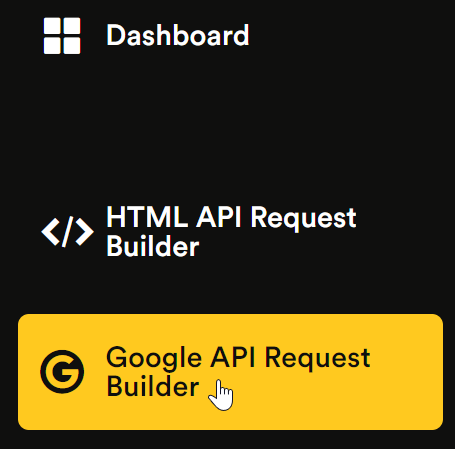
If you don't have an account yet, go ahead and register for free, then open the Google API Request Builder:
Enter your search query in the Search field and press Try it:
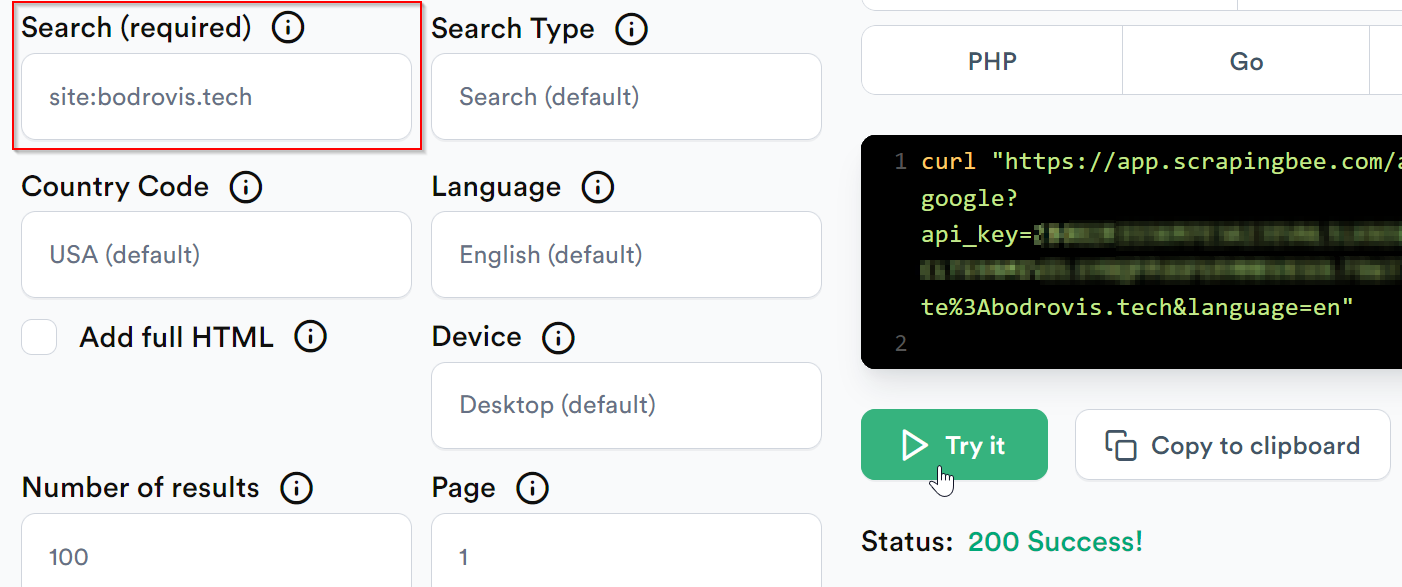
The API returns structured JSON. In the response, the organic_results array contains the search results, and each result includes a url field with the page URL:
"organic_results": [
    {
        "url": "https://bodrovis.tech/",
        "displayed_url": "https://bodrovis.tech"
    },
    {
        "url": "https://bodrovis.tech/en/teaching",
        "displayed_url": "https://bodrovis.tech › teaching"
    },
    {
        "url": "https://bodrovis.tech/ru/blog/",
        "displayed_url": "https://bodrovis.tech › blog"
    }
]
From there, you can save the JSON response, extract the url values, and add them to your website links list.
Please refer to my other tutorial to learn more about scraping Google search results.
2. Sitemap and robots.txt
If you want to find all URLs on a domain, the sitemap and robots.txt file are usually the best places to check after Google Search. They are simple, public files that often reveal a lot about a website's structure.
Typically they can be found at:
https://example.com/sitemap.xmlhttps://example.com/robots.txt
A sitemap lists URLs the website wants search engines to discover. A robots.txt file can point to one or more sitemaps and show which parts of the site crawlers are asked not to access.
When these files are configured properly, they are one of the fastest ways to start building a website links list. Just keep in mind that they are not guaranteed to be complete. Some websites have multiple sitemaps, outdated sitemap entries, missing sections, blocked paths, or URLs generated dynamically by the application.
If a sitemap is difficult to fetch because of redirects, rate limits, bot checks, or JavaScript-heavy infrastructure, you can use ScrapingBee's web scraping API with JavaScript rendering to retrieve the page more reliably before extracting URLs.
Finding all URLs with sitemaps and robots.txt
This method is more technical than using Google Search, but it is also more robust. Instead of relying on what Google has indexed, you inspect the files that websites provide to guide crawlers.
Sitemaps
A sitemap is usually an XML file that helps search engines discover important URLs on a website. Think of it as a structured roadmap of pages, posts, categories, products, or other public resources.
Here is what a basic sitemap can look like:
<urlset xsi:schemaLocation="...">
  <url>
    <loc>https://example.com</loc>
    <lastmod>2026-02-18T13:13:49+00:00</lastmod>
    <changefreq>weekly</changefreq>
    <priority>0.5</priority>
  </url>
  <url>
    <loc>https://example.com/some/path</loc>
    <lastmod>2026-02-18T13:13:49+00:00</lastmod>
    <changefreq>weekly</changefreq>
    <priority>0.5</priority>
  </url>
</urlset>
The important tag here is loc. Each loc tag contains a URL.
Other fields, such as lastmod, changefreq, and priority, provide extra metadata. In practice, lastmod is usually the most useful one because it can tell you when a page was last updated. changefreq and priority may still appear in sitemaps, but you should not rely on them too much.
For small sitemaps, open the file in the browser and copy the URLs manually. For larger sitemaps, it's better to parse the XML and export the loc values to CSV, JSON, or a database.
Large websites often use sitemap index files. Instead of listing pages directly, the main sitemap points to other sitemaps:
<sitemapindex xsi:schemaLocation="...">
  <sitemap>
    <loc>
      https://example.com/sitemaps/english.xml
    </loc>
    <lastmod>2026-02-18T13:13:49+00:00</lastmod>
  </sitemap>
  <sitemap>
    <loc>
      https://example.com/sitemaps/french.xml
    </loc>
    <lastmod>2026-02-18T13:13:50+00:00</lastmod>
  </sitemap>
</sitemapindex>
In this example, the website has two separate sitemaps: one for English pages and one for French pages. To find the URLs, you need to open each sitemap listed inside the loc tags and extract the page URLs from there.
How to find sitemaps?
Not sure where to find a sitemap? Try checking /sitemap.xml on the website, like https://example.com/sitemap.xml. The robots.txt file, discussed next, often includes a sitemap link.
Other common sitemap locations include:
/sitemap.xml.gz/sitemap_index.xml/sitemap_index.xml.gz/sitemap.php/sitemapindex.xml/sitemap.gz/sitemapindex.xml
Another effective method involves leveraging our old friend Google. Simply navigate to the Google search bar and enter:
site:example.com filetype:xml
This can help you find indexed sitemap files, feeds, or other XML resources. It's not guaranteed to show every sitemap, but it's a useful extra check when the default sitemap path does not work.
If the website has many XML files, you may need to filter the results manually. Look for URLs that contain words like sitemap, post-sitemap, page-sitemap, product-sitemap, category-sitemap, or sitemap_index.
Using robots.txt
The robots.txt file is a plain text file located at the root of a website. It tells crawlers which areas of the site they are allowed or not allowed to crawl. For URL discovery, robots.txt is useful because it often contains sitemap links and path patterns that reveal important sections of the website.
Here is a simple example:
User-agent: *
Sitemap: https://example.com/sitemap.xml

Disallow: /login
Disallow: /internal
Disallow: /dashboard
Disallow: /admin
- The
Sitemap:line tells where the sitemap is located. - The
Disallow:lines tell crawlers not to access specific paths. These paths can be useful clues about the site's structure, but they do not guarantee that the URLs exist. They also do not mean the pages are safe or appropriate to scrape. If a path is disallowed, respect that rule unless you have explicit permission to crawl it.
Also, do not confuse crawling with indexing. A Disallow rule asks crawlers not to fetch a URL. It does not directly remove that URL from search results.
3. SEO spider tools
If you want a point-and-click way to find all pages on a website, SEO spider tools are a good option. A spider search engine crawler works by following internal links, then collect useful data such as URLs, status codes, page titles, meta descriptions, canonicals, redirects, and broken links.
This is often easier than writing your own crawler, especially when you just need a clean website links list for an audit or migration.
Here is a quick comparison of commonly used SEO crawlers:
| Tool | Free Tier | Strengths | Limitations |
|---|---|---|---|
| Screaming Frog SEO Spider | Crawls up to 500 URLs for free | Very detailed desktop crawler; great for technical SEO audits, redirects, metadata, canonicals, status codes, and custom extraction | Free version is capped at 500 URLs; JavaScript rendering, saving crawls, advanced configuration, and API integrations require a paid license |
| XML-Sitemaps.com | Generates sitemaps for up to 500 URLs for free | Simple browser-based crawler; useful when you quickly need a basic XML sitemap or URL export | Limited for large sites; fewer technical audit features than dedicated SEO crawlers |
| Ahrefs Webmaster Tools / Site Audit | Free for verified websites, with crawl credit limits | Strong SEO auditing features, backlink context, and issue reporting for sites you own or can verify | Mainly useful for verified properties; broader Ahrefs data and higher limits require paid plans |
| Semrush Site Audit | Limited free auditing; higher crawl limits on paid SEO Toolkit plans | Clean UI, strong SEO diagnostics, crawl configuration, and reporting | Free usage is limited; larger crawls and advanced workflows require a paid plan |
SEO spider tools are especially useful when you:
- want to crawl a small or medium-sized website quickly;
- need status codes, redirects, canonicals, titles, and meta descriptions;
- are auditing a migration or checking for broken internal links;
- prefer a visual interface instead of writing code.
The main limitation is scale. Desktop crawlers and SEO platforms can become restrictive if you need to crawl very large sites, run scheduled crawls, process JavaScript-heavy pages, or integrate the results into your own scraping pipeline.
For high-scale programmatic crawling, it is often better to use an API built specifically for web data extraction and store the extracted URLs directly in your own database or workflow.
Use Screaming Frog to crawl the website
Now let's see how to use an SEO spider to find website pages. For this example, we'll use Screaming Frog SEO Spider, one of the most common desktop crawlers for technical SEO work.
The free version lets you crawl up to 500 URLs, which is enough for small websites and quick checks. Larger crawls and advanced features require a paid license.
After installing Screaming Frog, open the app in Crawl mode, enter the website URL in the top field, and click Start:

The tool will start following internal links and collecting URLs, status codes, page titles, meta data, canonicals, directives, and other crawl data.
For small websites, this can finish quickly. For larger or more complex sites, give it some time:
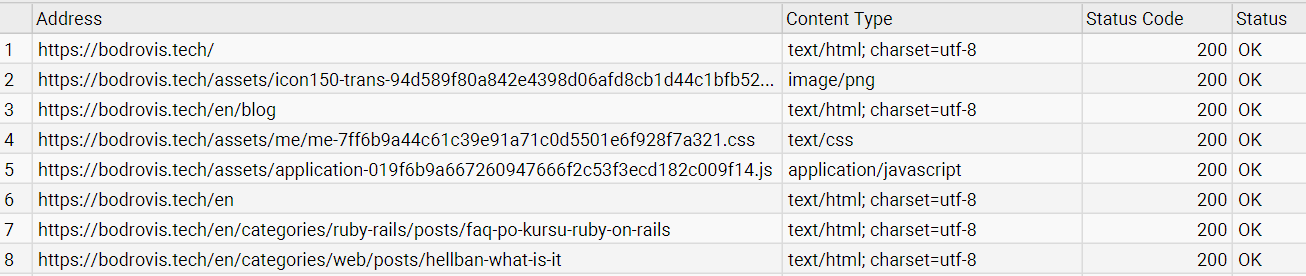
By default, Screaming Frog can show different types of resources, including HTML pages, images, JavaScript files, CSS files, PDFs, and more. If you only want actual web pages, use the Filter dropdown and select HTML:
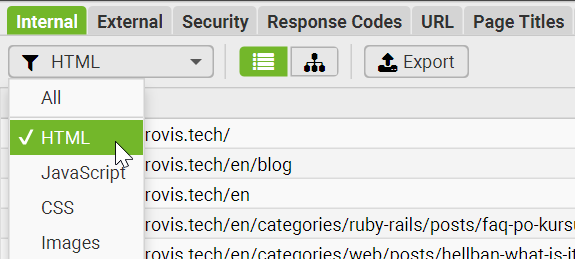
This gives you a cleaner list of pages instead of mixing pages with static assets.
You can also use the tabs at the top to inspect different types of crawl data. For example:
- Internal shows URLs found on the target site.
- External shows links pointing away from the target site.
- Response Codes helps you find redirects, 404s, blocked URLs, and server errors.
- Page Titles and Meta Description help with SEO audits.
- Images, Canonicals, Hreflang, and other tabs are useful for deeper checks.
If your goal is to build a website links list, start with the Internal tab and filter it to HTML. Then export the results to CSV or Excel.
Screaming Frog is also useful for finding broken links. Their official broken link checker tutorial explains how to inspect 404s and export the source pages where those broken links were found.
Sometimes a website may slow down or block your crawl. Before assuming the site is broken, check your crawl settings:
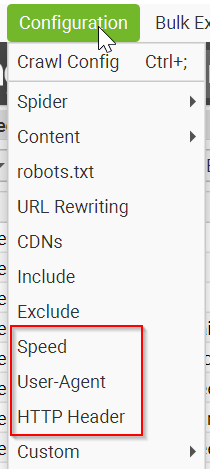
The most useful settings to review are:
- Speed — reduce crawl speed if the server is struggling or returning errors.
- User-Agent — choose an appropriate user agent for your audit. Do not impersonate Googlebot just to bypass restrictions.
- HTTP Headers — add custom headers only when you need them, for example when crawling a site you own or have permission to test.
- JavaScript Rendering — enable this when important links are rendered client-side, but note that this is a paid feature.
Also remember that Screaming Frog follows robots.txt by default. If a section is blocked by robots.txt, the crawler may not fetch it. For normal audits, that is usually the correct behavior.
If you only want URLs on the target website, keep your work focused on the Internal tab and avoid exporting external links. For stricter control, adjust crawl configuration so the spider doesn't waste time on external resources.
4. Custom scripting
If you need more control than Google Search, sitemaps, or SEO spider tools can offer, a custom script is usually the next step.
This approach takes more work, but it lets you decide exactly how URLs are discovered, filtered, stored, and processed. You can parse sitemaps, crawl internal links, extract page data, remove duplicates, follow pagination, retry failed requests, and export the final URL list in whatever format your workflow needs.
A custom script is especially useful when you:
- need to find all URLs on a domain at scale;
- want to repeat the process regularly;
- need to combine sitemap URLs with crawled URLs;
- want to extract data from each page after discovering it;
- need to plug the results into a database, scraper, or data pipeline.
The trade-off is handling edge cases manually: redirects, duplicate URLs, canonical tags, rate limits, JavaScript-rendered links, broken pages, and blocked requests.
Create a script to find all URLs on a domain
In this section, we'll build a Python 3 script that discovers URLs from a website sitemap and then extracts data from the pages it finds.
For this demo, we'll use a Walmart scraper originally created by Sahil Sunny, one of ScrapingBee's Support Engineers, and then updated by me. The example is useful because Walmart is a large ecommerce website with many URL types, multiple sitemap files, and a structure that is more realistic than a small blog or brochure site.
This does not mean a sitemap alone will reveal every possible Walmart URL. Large ecommerce sites often have dynamic pages, filtered category URLs, search result pages, and JavaScript-rendered content that may not appear in sitemaps. Still, sitemap parsing is a strong starting point because it gives you a structured list of URLs that the site exposes to crawlers.
In real projects, always respect
robots.txt, site terms, rate limits, and any permissions or legal requirements that apply to your use case.
Preparing the project
First off, let's kickstart a new project using uv:
uv init --package link-finder
cd link-finder
Now, beef up your project's dependencies by running the following command:
uv add python-dotenv numpy pandas tqdm scrapingbee xmltodict
Next, create the main script file:
touch src/link_finder/main.py
Open src/link_finder/main.py and import the required dependencies:
from __future__ import annotations

import json
import logging
import os
import re
import time
from concurrent.futures import ThreadPoolExecutor, as_completed
from hashlib import blake2b
from pathlib import Path
from typing import Any, TypedDict
from urllib.parse import urlparse

import numpy as np
import pandas as pd
import xmltodict
from dotenv import load_dotenv
from scrapingbee import ScrapingBeeClient
from tqdm import tqdm
Project configuration
Let's also create an .env file in the project root and paste your ScrapingBee API key inside. We'll use ScrapingBee to add a bit of AI magic that will greatly help with the data processing:
SCRAPINGBEE_API_KEY=YOUR_API_KEY
🤖 To follow along with this tutorial and run this script, grab your Free 1,000 scraping credits and API Key
Load your environment variables in the script:
load_dotenv()
Create all the necessary constants:
SITEMAP_URL: str = "https://www.walmart.com/sitemap_category.xml"
SITE_NAME: str = "walmart"

SB_API_KEY: str | None = os.getenv("SCRAPINGBEE_API_KEY")
if not SB_API_KEY:
    raise RuntimeError(
        "Missing SCRAPINGBEE_API_KEY. Add it to your .env file before running the script."
    )

CONCURRENCY_LIMIT: int = 5  # Adjust depending on your plan, target site, and retry behavior.

BASE_DIR: Path = Path("product-data")
DATA_DIR: Path = BASE_DIR / "data"
LOG_FILE: Path = BASE_DIR / "logs.csv"
CSV_OUTPUT: Path = BASE_DIR / "data.csv"

DATA_DIR.mkdir(parents=True, exist_ok=True)
LOG_FILE.parent.mkdir(parents=True, exist_ok=True)
In this example, we're going to work with Walmart's sitemap, but you can replace SITEMAP_URL with another sitemap URL if you're targeting a different website.
The script will use these paths to store:
- discovered URLs;
- scraped page data;
- request logs;
- the final CSV export.
Now let's move on to the main part of the script.
Fetching sitemap URLs
First, create the ScrapingBee client. Add this after the constants:
client = ScrapingBeeClient(api_key=SB_API_KEY)
Now let's create a function that fetches URLs from the sitemap:
def fetch_sitemap_urls(
    sitemap_url: str = SITEMAP_URL,
    output_file: Path | None = None,
) -> list[str]:
    """Fetch URLs from a sitemap and save them to a text file."""
    logging.info("Fetching sitemap: %s", sitemap_url)

    response = client.get(
        sitemap_url,
        params={
            "render_js": False,
            "premium_proxy": True,
            "country_code": "us",
        },
    )

    if response.status_code != 200:
        raise RuntimeError(
            f"Failed to fetch sitemap {sitemap_url}. "
            f"Status code: {response.status_code}"
        )

    sitemap_data = xmltodict.parse(response.text)

    urls: list[str] = []

    if "urlset" in sitemap_data:
        url_entries = sitemap_data["urlset"].get("url", [])

        if isinstance(url_entries, dict):
            url_entries = [url_entries]

        urls = [
            entry["loc"].strip()
            for entry in url_entries
            if isinstance(entry, dict) and entry.get("loc")
        ]

    elif "sitemapindex" in sitemap_data:
        sitemap_entries = sitemap_data["sitemapindex"].get("sitemap", [])

        if isinstance(sitemap_entries, dict):
            sitemap_entries = [sitemap_entries]

        child_sitemaps = [
            entry["loc"].strip()
            for entry in sitemap_entries
            if isinstance(entry, dict) and entry.get("loc")
        ]

        logging.info("Found %d child sitemaps.", len(child_sitemaps))

        for child_sitemap_url in child_sitemaps:
            urls.extend(fetch_sitemap_urls(child_sitemap_url, output_file=None))

    else:
        raise ValueError(f"Unsupported or empty sitemap structure: {sitemap_url}")

    urls = sorted(set(urls))

    if output_file is None:
        output_file = Path(f"{SITE_NAME}_urls.txt")

    output_file.write_text("\n".join(urls), encoding="utf-8")

    logging.info("Saved %d URLs to %s.", len(urls), output_file)

    return urls
This function:
- fetches the sitemap XML;
- parses the XML response;
- extracts URLs from every loc tag;
- supports both regular urlset sitemaps and
sitemapindexfiles; - removes duplicate URLs;
- saves the final URL list to a text file;
- returns the extracted URLs for the next steps.
The recursive sitemapindex handling is important because large websites often split their URLs across many smaller sitemap files instead of keeping everything in one huge file.
Extracting a clean slug from URLs
Next, we need a helper function to extract a clean and unique identifier (slug) from a product URL.
def extract_slug(url: str) -> str:
    """Create a safe, mostly human-readable, unique slug from a URL."""
    parsed = urlparse(url)

    path_slug = parsed.path.rstrip("/").split("/")[-1]
    path_slug = path_slug.strip().lower()

    safe_slug = re.sub(r"[^a-z0-9_-]+", "-", path_slug)
    safe_slug = re.sub(r"-+", "-", safe_slug).strip("-")

    if not safe_slug:
        safe_slug = "page"

    url_hash = blake2b(url.encode("utf-8"), digest_size=6).hexdigest()

    return f"{safe_slug}-{url_hash}"
This function:
- parses the URL with
urlparse; - takes the last part of the URL path;
- normalizes it into a filesystem-safe slug;
- falls back to page if the URL path does not contain a useful slug;
- appends a short hash so two different URLs do not accidentally produce the same filename.
The hash part matters. The last URL segment is not guaranteed to be unique, especially on large ecommerce websites where different pages can share similar paths, filters, or tracking parameters.
Scraping product data
Now, let's write the core function that scrapes product data from Walmart.
from typing import Any, TypedDict


class ScrapeLog(TypedDict):
    url: str
    status_code: int | None
    resolved_url: str
    message: str
    elapsed_seconds: float


iteration_times: list[float] = []

AI_EXTRACT_RULES: dict[str, dict[str, str]] = {
    "name": {
        "description": "Product name",
        "type": "string",
    },
    "description": {
        "description": "Product description",
        "type": "string",
    },
    "original_price": {
        "description": "Original price before discount, if available",
        "type": "string",
    },
    "offer_price": {
        "description": "Current offer price or sale price, if available",
        "type": "string",
    },
    "availability": {
        "description": "Product availability or stock status",
        "type": "string",
    },
    "rating": {
        "description": "Average customer rating, if available",
        "type": "string",
    },
    "review_count": {
        "description": "Number of customer reviews, if available",
        "type": "string",
    },
    "link": {
        "description": "Canonical product URL",
        "type": "string",
    },
}


def parse_json_response(response_text: str) -> dict[str, Any]:
    """Parse a JSON response, allowing for occasional fenced JSON output."""
    cleaned_text = response_text.strip()

    if cleaned_text.startswith("```json"):
        cleaned_text = cleaned_text.removeprefix("```json").strip()

    if cleaned_text.startswith("```"):
        cleaned_text = cleaned_text.removeprefix("```").strip()

    if cleaned_text.endswith("```"):
        cleaned_text = cleaned_text.removesuffix("```").strip()

    parsed = json.loads(cleaned_text)

    if not isinstance(parsed, dict):
        raise ValueError("Expected a JSON object from the extraction response.")

    return parsed


def scrape_product(url: str) -> ScrapeLog:
    """Scrape a product page, save its extracted JSON data, and return a log entry."""
    start_time = time.time()
    resolved_url = ""

    try:
        response = client.get(
            url,
            params={
                "premium_proxy": True,
                "country_code": "us",
                "render_js": True,
                "ai_extract_rules": AI_EXTRACT_RULES,
            },
        )

        status_code = response.status_code
        resolved_url = response.headers.get("spb-resolved-url", url)

        if status_code != 200:
            return {
                "url": url,
                "status_code": status_code,
                "resolved_url": resolved_url,
                "message": "Scraping failed",
                "elapsed_seconds": round(time.time() - start_time, 3),
            }

        try:
            extracted_data = parse_json_response(response.text)
        except (json.JSONDecodeError, ValueError) as exc:
            logging.error(
                "JSON parsing error for %s: %s. Response snippet: %s",
                url,
                exc,
                response.text[:500],
            )

            return {
                "url": url,
                "status_code": status_code,
                "resolved_url": resolved_url,
                "message": "JSON parsing error",
                "elapsed_seconds": round(time.time() - start_time, 3),
            }

        slug = extract_slug(url)
        output_path = DATA_DIR / f"{slug}.json"

        output_path.write_text(
            json.dumps(extracted_data, indent=2, ensure_ascii=False),
            encoding="utf-8",
        )

        return {
            "url": url,
            "status_code": status_code,
            "resolved_url": resolved_url,
            "message": "Success",
            "elapsed_seconds": round(time.time() - start_time, 3),
        }

    except Exception as exc:
        logging.exception("Unexpected error while scraping %s", url)

        return {
            "url": url,
            "status_code": None,
            "resolved_url": resolved_url,
            "message": str(exc),
            "elapsed_seconds": round(time.time() - start_time, 3),
        }

    finally:
        elapsed = time.time() - start_time
        iteration_times.append(elapsed)

        if len(iteration_times) > 100:
            iteration_times.pop(0)
This function does a few things:
- sends the page URL to ScrapingBee;
- uses
premium_proxyand US geotargeting, which can be useful for ecommerce pages with region-specific content; - enables JavaScript rendering because product pages often load important data dynamically;
- uses
ai_extract_rulesto request structured product fields; - parses the JSON response;
- saves each extracted result as a separate
.jsonfile; - returns a structured log entry for success, failure, redirects, parsing errors, and timing.
A couple of notes:
- AI extraction is convenient, but it costs extra credits. Use it when you want flexible extraction without maintaining fragile CSS selectors.
- If you're scraping many URLs, test on a small batch first before running the full list.
- If the target pages are mostly static HTML, you can try setting
"render_js": Falseto reduce cost and speed up requests.
Running scraping tasks concurrently
Large websites can contain thousands of URLs, so scraping them one by one would be slow. To speed things up, we'll run multiple scraping tasks at the same time with ThreadPoolExecutor.
First, create a list to store the scraping logs:
log_entries: list[ScrapeLog] = []
Now add the concurrent scraping function:
def execute_scraping(
    urls: list[str],
    max_urls: int | None = 100,
) -> list[ScrapeLog]:
    """Run scraping tasks concurrently and return scraping logs."""
    if max_urls is not None:
        urls = urls[:max_urls]

    if not urls:
        logging.warning("No URLs provided for scraping.")
        return []

    logging.info("Starting concurrent scraping for %d URLs.", len(urls))

    log_entries.clear()

    with ThreadPoolExecutor(max_workers=CONCURRENCY_LIMIT) as executor:
        futures = {
            executor.submit(scrape_product, url): url
            for url in urls
        }

        with tqdm(
            total=len(futures),
            desc="Scraping progress",
            dynamic_ncols=True,
        ) as progress_bar:
            for future in as_completed(futures):
                url = futures[future]

                try:
                    result = future.result()
                except Exception as exc:
                    logging.exception("Unhandled scraping error for %s", url)

                    result: ScrapeLog = {
                        "url": url,
                        "status_code": None,
                        "resolved_url": "",
                        "message": str(exc),
                        "elapsed_seconds": 0.0,
                    }

                log_entries.append(result)

                median_time = float(np.median(iteration_times)) if iteration_times else 0.0
                urls_per_second = (1 / median_time) if median_time > 0 else 0.0

                progress_bar.set_postfix(
                    {
                        "median_s/url": f"{median_time:.2f}",
                        "url/s": f"{urls_per_second:.2f}",
                    }
                )
                progress_bar.update(1)

    logging.info("Finished scraping %d URLs.", len(log_entries))

    return log_entries
This function:
- runs multiple scraping jobs concurrently;
- limits concurrency through
CONCURRENCY_LIMIT; - uses
max_urls=100by default so the demo does not accidentally scrape thousands of pages; - tracks progress with
tqdm; - catches unexpected task-level errors;
- stores every scrape result in
log_entries; - returns the final log list for later export.
For a real full-site run, you can call it with:
execute_scraping(urls, max_urls=None)
Before doing that, test on a small sample first. Large ecommerce sites can generate a lot of requests quickly, especially when JavaScript rendering and AI extraction are enabled.
Processing scraped data into a CSV file
Once all JSON files are collected, we can combine them into a single CSV file for analysis, export, or further processing.
def process_scraped_data() -> pd.DataFrame | None:
    """Combine scraped JSON files into a CSV file."""
    json_files = sorted(DATA_DIR.glob("*.json"))

    if not json_files:
        logging.warning("No JSON files found in %s.", DATA_DIR)
        return None

    dataframes: list[pd.DataFrame] = []
    error_files: list[Path] = []

    logging.info("Processing %d JSON files into CSV.", len(json_files))

    for file_path in json_files:
        try:
            data = json.loads(file_path.read_text(encoding="utf-8"))

            if isinstance(data, list):
                df = pd.json_normalize(data)
            elif isinstance(data, dict):
                df = pd.json_normalize([data])
            else:
                raise ValueError(f"Unexpected JSON format: {type(data).__name__}")

            df["source_file"] = file_path.name
            dataframes.append(df)

        except Exception as exc:
            logging.error("Error reading %s: %s", file_path, exc)
            error_files.append(file_path)

    if not dataframes:
        logging.warning("No valid JSON data found to save.")
        return None

    final_df = pd.concat(dataframes, ignore_index=True)
    final_df.to_csv(CSV_OUTPUT, index=False, encoding="utf-8")

    logging.info("Data successfully saved to %s.", CSV_OUTPUT)

    if error_files:
        logging.warning("The following files caused errors:")
        for error_file in error_files:
            logging.warning(" - %s", error_file)

    return final_df
This function:
- reads every
.jsonfile fromDATA_DIR; - supports both JSON objects and arrays;
- uses
pd.json_normalize()to handle nested fields more cleanly; - adds a
source_filecolumn so you can trace each row back to the saved JSON file; - combines all valid files into one DataFrame;
- saves the final result to
CSV_OUTPUT; - logs files that could not be parsed;
- returns the final DataFrame, or
Noneif no valid data was found.
If the AI extraction rules return simple fields like product name, price, availability, and rating, the CSV will be straightforward. If the response contains nested objects, pd.json_normalize() will flatten them into columns such as price.current or reviews.count.
Saving logs
Finally, let's save the scraping logs to a CSV file. This makes debugging easier because you can quickly check which URLs succeeded, failed, redirected, or returned parsing errors.
def save_logs(logs: list[ScrapeLog] | None = None) -> pd.DataFrame:
    """Save scraping logs to a CSV file and return the logs DataFrame."""
    if logs is None:
        logs = log_entries

    logs_df = pd.DataFrame(logs)

    if logs_df.empty:
        logging.warning("No log entries to save.")
        logs_df.to_csv(LOG_FILE, index=False, encoding="utf-8")
        return logs_df

    logs_df.to_csv(LOG_FILE, index=False, encoding="utf-8")

    logging.info("Logs saved to %s.", LOG_FILE)

    return logs_df
This function:
- converts scraping log entries into a pandas DataFrame;
- saves the logs to
LOG_FILE; - records each URL, status code, resolved URL, message, and request timing;
- returns the logs DataFrame in case you want to inspect it later in the script.
The log file is useful when you need to retry failed URLs, check redirect behavior, or compare response times across different pages.
Full Python script to find all URLs on a domain's website
Now, let's assemble everything into a complete script that you can find on Gist.
This script:
- fetches Walmart's category sitemap and extracts discovered page URLs;
- sends each page URL to ScrapingBee;
- stores extracted structured data in JSON files;
- processes the data into a final CSV;
- saves logs for debugging.
With this setup, you can efficiently scrape thousands of product pages! Note that by default, the script only scrapes the first 100 URLs: MAX_URLS_TO_SCRAPE: int | None = 100. That keeps the tutorial safe to run while testing.
To run it, simply call:
uv run python src\link_finder\main.py
Great job!
What if there's no sitemap on the website?
Sometimes a website does not expose a sitemap, or the sitemap is incomplete. In that case, you can discover pages by crawling internal links.
The idea is simple:
- Start from the homepage.
- Extract all internal links from the page.
- Add new links to a queue.
- Visit each queued URL.
- Repeat until there are no new internal URLs left.
This method can work well, but it is not perfect. It will only find pages that are reachable through links. Orphan pages, private pages, search-result pages, dynamically generated routes, and JavaScript-only links may still be missed.
For a basic crawler, install the required dependencies first:
uv add requests beautifulsoup4
Here is a simple internal link crawler:
from __future__ import annotations

import time
from collections import deque
from urllib.parse import urldefrag, urljoin, urlparse

import requests
from bs4 import BeautifulSoup


class Crawler:
    """A small same-domain crawler for discovering internal links."""

    def __init__(
        self,
        start_url: str,
        max_pages: int = 100,
        delay_seconds: float = 1.0,
        user_agent: str = "SimpleCrawler/1.0 (+https://example.com/contact)",
    ) -> None:
        self.start_url = start_url.rstrip("/")
        self.max_pages = max_pages
        self.delay_seconds = delay_seconds
        self.user_agent = user_agent

        parsed_start_url = urlparse(self.start_url)
        self.base_domain = parsed_start_url.netloc

        self.session = requests.Session()
        self.session.headers.update(
            {
                "User-Agent": self.user_agent,
                "Accept": "text/html,application/xhtml+xml",
                "Accept-Encoding": "gzip, deflate",
            }
        )

        self.visited_urls: set[str] = set()
        self.urls_to_visit: deque[str] = deque([self.start_url])

    def download_url(self, url: str) -> str:
        """Download a URL and return its HTML content."""
        response = self.session.get(url, timeout=15)

        if response.status_code in {403, 429}:
            retry_after = response.headers.get("Retry-After")
            message = f"Rate limited or blocked: {url} ({response.status_code})"

            if retry_after:
                message += f". Retry-After: {retry_after}s"

            print(message)
            return ""

        response.raise_for_status()

        content_type = response.headers.get("content-type", "")

        if "text/html" not in content_type:
            return ""

        return response.text

    def normalize_url(self, current_url: str, href: str | None) -> str | None:
        """Convert a link into a normalized absolute URL."""
        if not href:
            return None

        absolute_url = urljoin(current_url, href)
        absolute_url, _fragment = urldefrag(absolute_url)

        parsed = urlparse(absolute_url)

        if parsed.scheme not in {"http", "https"}:
            return None

        if parsed.netloc != self.base_domain:
            return None

        return absolute_url.rstrip("/")

    def get_linked_urls(self, url: str, html: str) -> set[str]:
        """Extract same-domain links from a page."""
        soup = BeautifulSoup(html, "html.parser")
        linked_urls: set[str] = set()

        for link in soup.find_all("a", href=True):
            normalized_url = self.normalize_url(url, link.get("href"))

            if normalized_url:
                linked_urls.add(normalized_url)

        return linked_urls

    def add_url_to_visit(self, url: str) -> None:
        """Add a URL to the queue if it has not been visited yet."""
        if url not in self.visited_urls and url not in self.urls_to_visit:
            self.urls_to_visit.append(url)

    def crawl(self, url: str) -> None:
        """Download a page and queue all discovered internal links."""
        html = self.download_url(url)

        if not html:
            return

        for linked_url in self.get_linked_urls(url, html):
            self.add_url_to_visit(linked_url)

    def run(self) -> set[str]:
        """Run the crawler and return all visited URLs."""
        while self.urls_to_visit and len(self.visited_urls) < self.max_pages:
            url = self.urls_to_visit.popleft()

            if url in self.visited_urls:
                continue

            try:
                print(f"Crawling: {url}")
                self.crawl(url)
            except requests.RequestException as exc:
                print(f"Failed to crawl {url}: {exc}")
            finally:
                self.visited_urls.add(url)
                time.sleep(self.delay_seconds)

        return self.visited_urls


if __name__ == "__main__":
    crawler = Crawler(
        start_url="https://en.wikipedia.org/",
        max_pages=100,
        delay_seconds=2.0,
        # Replace with your actual contact info:
        user_agent="SimpleCrawlerDemo/1.0 (+https://example.com/contact)",
    )

    urls = crawler.run()

    print(f"\nFound {len(urls)} URLs:")
    for url in sorted(urls):
        print(url)
Here's what the script does:
- starts from a single URL;
- keeps a queue of URLs still waiting to be visited;
- downloads each page with
requests; - extracts links with BeautifulSoup;
- converts relative URLs into absolute URLs;
- ignores external domains,
mailto:,tel:, and other non-HTTP links; - avoids visiting the same URL twice.
This is still a minimal crawler. For production use, you would usually add:
robots.txthandling;- crawl delays;
- retries;
- better URL normalization;
- canonical tag handling;
- JavaScript rendering;
- persistent storage;
- logging;
- duplicate content detection.
If you want a more complete crawling framework, check out our Scrapy tutorial.
How to find hidden or orphaned pages
Orphan pages are pages that exist on a website but have no internal links pointing to them. In other words, users and crawlers cannot easily reach them by clicking through the site's navigation, category pages, blog posts, footer links, or other internal pages.
This is why regular spiders and crawlers often miss them. Most crawlers work by starting from one or more known URLs, extracting links from those pages, and then following those links deeper into the site. If no page links to an orphan URL, the crawler has no path to discover it.
Orphan pages can happen for many reasons:
- old landing pages were removed from navigation but not deleted;
- product or category pages were replaced during a migration;
- campaign pages were created for ads or email traffic only;
- pages exist in the CMS but were never linked internally;
- URLs are still receiving traffic from external links or search engines.
To find orphan pages, compare multiple data sources instead of relying only on a crawler:
- Server log files — show URLs requested by users and bots, including pages that may not be linked internally.
- Google Analytics — can reveal pages receiving traffic even if they are not discoverable through site navigation.
- Google Search Console — can show indexed or clicked URLs that your crawler did not find.
- XML sitemaps — may contain URLs that are not internally linked.
- Backlink tools — can uncover pages that external websites still link to.
You workflow might look like this:
- Crawl the website with a spider tool and export all discovered internal URLs.
- Export landing page URLs from analytics.
- Export indexed or clicked URLs from Google Search Console.
- Export URLs from server logs if you have access.
- Compare the lists and look for URLs that appear in analytics, logs, Search Console, or sitemaps, but not in your crawl.
Those missing-from-crawl URLs are your orphan page candidates.
Once you find them, decide what to do with each one. Important pages should be linked from relevant internal pages. Outdated pages should be redirected, updated, noindexed, or removed depending on the situation. The goal is not just to find all URLs on a domain, but to understand which pages should actually remain discoverable.
How to find specific file types: PDFs, images, and documents
Sometimes you do not need to find every page on a website. You only need specific file types, such as PDFs, images, spreadsheets, presentations, or downloadable documents.
This is common when you are looking for:
- PDF reports;
- product manuals;
- image assets;
- press kits;
- public datasets;
- documents uploaded to a CMS.
Use Google's filetype: operator
The fastest way to check for indexed files is to use Google's filetype: operator together with site:.
For example, to find PDF files on a domain:
site:example.com filetype:pdf
You can do the same for other file types:
site:example.com filetype:xlsx
site:example.com filetype:docx
site:example.com filetype:pptx
This is useful for quick discovery, but it only shows files that Google has indexed. It won't find files blocked from indexing, hidden behind forms, generated dynamically, or unavailable to Googlebot.
Filter by extension in Python
If you already have a list of URLs from a sitemap or crawler, you can filter them by file extension.
from urllib.parse import urlparse


def filter_urls_by_extension(
    urls: list[str],
    extensions: set[str],
) -> list[str]:
    """Return URLs whose path ends with one of the given extensions."""
    normalized_extensions = {
        extension.lower().lstrip(".")
        for extension in extensions
    }

    matched_urls: list[str] = []

    for url in urls:
        path = urlparse(url).path.lower()
        extension = path.rsplit(".", 1)[-1] if "." in path else ""

        if extension in normalized_extensions:
            matched_urls.append(url)

    return matched_urls


pdf_urls = filter_urls_by_extension(urls, {"pdf"})
image_urls = filter_urls_by_extension(urls, {"jpg", "jpeg", "png", "webp", "gif", "svg"})
document_urls = filter_urls_by_extension(urls, {"pdf", "doc", "docx", "xls", "xlsx", "ppt", "pptx"})
This works well when the file extension appears directly in the URL path, such as:
https://example.com/files/report.pdf
https://example.com/images/product-photo.webp
It may miss files served through dynamic URLs like: https://example.com/download?id=123. For those, you need to inspect the Content-Type response header instead of relying only on the URL extension.
Filter file types in Screaming Frog
Screaming Frog also makes this easy. After crawling a website, you can use the top navigation tabs and filters to focus on specific resource types.
For example:
- use the Images tab to inspect discovered image files;
- use the Internal tab and filter by file extension such as
.pdf; - use the Response Codes tab to check whether files return
200,301,404, or other statuses; - export the filtered results to CSV.
For a more complete check, combine methods:
- Search Google with
site:example.com filetype:pdf. - Crawl the site and filter URLs by extension.
- Check the sitemap for file URLs.
- Inspect analytics or server logs for downloaded files that crawlers may not find.
That gives you a much better chance of finding files that are indexed, linked internally, listed in sitemaps, or still receiving traffic.
Automating URL discovery with no-code tools
If you prefer to skip coding altogether, platforms like Make (Integromat) or n8n let you build automated workflows that collect URLs for you. This is especially handy when you want to find all pages on a website online, check all website pages for updates, or simply view all website pages inside a central place like Google Sheets.
How a no-code URL discovery flow works
A typical Make or n8n scenario might look like this:
- Google Search module. You start by triggering a search such as
site:example.com. The module retrieves a list of indexed pages. While it won't capture everything, it's a quick way to gather highly visible URLs without manual querying. - HTTP / Fetch module for sitemap.xml. Next, you add a module that fetches
https://example.com/sitemap.xml. Most sitemaps are straightforward XML files, and both Make and n8n offer tools to parse XML into structured data. From here, you can extract<loc>nodes and feed all the URLs into your workflow. - Filters and Transformers. You can add filters to exclude URLs containing parameters, only keep HTML pages, remove duplicates, or ignore staging/test routes.
- Google Sheets module. Finally, direct the parsed URLs into a Sheet. This gives you a live list of all discovered pages, easy sorting and filtering, and a simple dashboard for team access.
Once the scenario is active, you can schedule it daily or weekly, so your URL list stays fresh without you doing anything.
When no-code tools shine — and when they don't
Make and n8n are great when:
- you need results fast,
- the site is publicly accessible,
- the sitemap is clean and not behind protection,
- and your goal is a lightweight monitoring workflow.
But no-code solutions can struggle when:
- the sitemap requires JavaScript rendering,
- the site uses dynamic routing,
- there are anti-bot protections,
- or you need to crawl thousands of pages efficiently.
This is where programmatic solutions or dedicated APIs come in. ScrapingBee's no-code integration for Make bridges that gap: you can stay in a no-code environment while still benefiting from a full web scraping engine that handles JavaScript rendering, blocked requests, and large sites.
ScrapingBee: Fetching and processing URLs at scale
When you need to move beyond small site checks and start working at real scale, ScrapingBee becomes the heavy-duty option built for serious crawling. It's designed for large batches of URL discovery and processing, especially when a site uses JavaScript, rate limits aggressively, or actively blocks scrapers.
ScrapingBee handles the hard parts automatically:
- Automatic proxy rotation to avoid IP blocking
- CAPTCHA avoidance so your workflow doesn't get stuck
- Full JavaScript rendering for modern, dynamic sites
- Consistent HTML output that makes parsing far easier
This is the kind of setup you need when crawling thousands of URLs, analyzing entire sitemaps, or even large e-commerce platforms (and yes, use cases like scrape Amazon fall into this category — for that, ScrapingBee provides a dedicated solution).
Example: Extract titles and meta descriptions from every URL in a sitemap
A common workflow is:
- fetch all URLs from a sitemap;
- visit each page;
- extract metadata such as the page title and meta description;
- export the results for SEO audits, content analysis, or scraping pipelines.
Here is a simple example using Python, BeautifulSoup, and the ScrapingBee API.
Python example
from __future__ import annotations

import csv
import xml.etree.ElementTree as ET
from concurrent.futures import ThreadPoolExecutor, as_completed
from typing import TypedDict

import requests
from bs4 import BeautifulSoup


API_KEY = "YOUR_API_KEY"
SITEMAP_URL = "https://example.com/sitemap.xml"

MAX_WORKERS = 8
OUTPUT_CSV = "metadata.csv"


class PageMetadata(TypedDict):
    url: str
    title: str
    description: str


def fetch_sitemap_urls(sitemap_url: str) -> list[str]:
    """Fetch and parse a sitemap XML file."""
    response = requests.get(sitemap_url, timeout=30)
    response.raise_for_status()

    root = ET.fromstring(response.text)

    namespace = {
        "sm": "http://www.sitemaps.org/schemas/sitemap/0.9"
    }

    urls = [
        loc.text.strip()
        for loc in root.findall(".//sm:loc", namespace)
        if loc.text
    ]

    return sorted(set(urls))


def fetch_page_metadata(url: str) -> PageMetadata:
    """Fetch a page through ScrapingBee and extract basic metadata."""
    try:
        response = requests.get(
            "https://app.scrapingbee.com/api/v1/",
            params={
                "api_key": API_KEY,
                "url": url,
                "render_js": "false",
            },
            timeout=60,
        )

        response.raise_for_status()

    except requests.RequestException as exc:
        print(f"Error fetching {url}: {exc}")

        return {
            "url": url,
            "title": "",
            "description": "",
        }

    soup = BeautifulSoup(response.text, "html.parser")

    title = ""

    if soup.title and soup.title.string:
        title = soup.title.string.strip()

    description = ""

    meta_description = soup.find(
        "meta",
        attrs={"name": "description"},
    )

    if meta_description:
        description = meta_description.get("content", "").strip()

    return {
        "url": url,
        "title": title,
        "description": description,
    }


def save_to_csv(rows: list[PageMetadata], output_file: str) -> None:
    """Save extracted metadata to a CSV file."""
    with open(output_file, "w", newline="", encoding="utf-8") as csv_file:
        writer = csv.DictWriter(
            csv_file,
            fieldnames=["url", "title", "description"],
        )

        writer.writeheader()
        writer.writerows(rows)


def main() -> None:
    urls = fetch_sitemap_urls(SITEMAP_URL)

    print(f"Found {len(urls)} URLs in sitemap")

    results: list[PageMetadata] = []

    with ThreadPoolExecutor(max_workers=MAX_WORKERS) as executor:
        future_to_url = {
            executor.submit(fetch_page_metadata, url): url
            for url in urls
        }

        for future in as_completed(future_to_url):
            result = future.result()
            results.append(result)

            print(
                f"Processed: {result['url']} | "
                f"Title length: {len(result['title'])}"
            )

    save_to_csv(results, OUTPUT_CSV)

    print(f"\nSaved metadata to {OUTPUT_CSV}")


if __name__ == "__main__":
    main()
Node.js example
// Make sure to install dependencies:
// npm install xml2js cheerio

import { parseStringPromise } from "xml2js";
import * as cheerio from "cheerio";


const API_KEY = process.env.SCRAPINGBEE_API_KEY || "YOUR_API_KEY";

const SITEMAP_URL = "https://example.com/sitemap.xml";

const CONCURRENCY = 5;


async function fetchSitemap(url = SITEMAP_URL) {
  const response = await fetch(url);

  if (!response.ok) {
    throw new Error(
      `Failed to fetch sitemap: ${response.status} ${response.statusText}`
    );
  }

  const xml = await response.text();

  const parsed = await parseStringPromise(xml);

  const entries = parsed?.urlset?.url || [];

  const urls = entries
    .map((entry) => entry?.loc?.[0])
    .filter(Boolean);

  return [...new Set(urls)];
}


async function fetchPageMetadata(url) {
  const apiUrl =
    `https://app.scrapingbee.com/api/v1/` +
    `?api_key=${API_KEY}` +
    `&url=${encodeURIComponent(url)}` +
    `&render_js=false`;

  try {
    const response = await fetch(apiUrl);

    if (!response.ok) {
      console.error(
        `Failed to fetch ${url}: ` +
        `${response.status} ${response.statusText}`
      );

      return null;
    }

    const html = await response.text();

    const $ = cheerio.load(html);

    const title = $("title").text().trim() || "";

    const description =
      $('meta[name="description"]')
        .attr("content")
        ?.trim() || "";

    return {
      url,
      title,
      description,
    };

  } catch (error) {
    console.error(`Error fetching ${url}:`, error);

    return null;
  }
}


async function mapWithConcurrency(items, limit, mapper) {
  const results = new Array(items.length);

  let index = 0;

  async function worker() {
    while (index < items.length) {
      const currentIndex = index++;

      try {
        results[currentIndex] = await mapper(items[currentIndex]);
      } catch (error) {
        console.error(
          `Error processing ${items[currentIndex]}:`,
          error
        );

        results[currentIndex] = null;
      }
    }
  }

  const workers = Array.from(
    { length: limit },
    () => worker()
  );

  await Promise.all(workers);

  return results;
}


async function run() {
  const urls = await fetchSitemap();

  console.log(`Found ${urls.length} URLs in sitemap`);

  const results = await mapWithConcurrency(
    urls,
    CONCURRENCY,
    fetchPageMetadata
  );

  const cleanedResults = results.filter(Boolean);

  console.log(cleanedResults);
}


run().catch((error) => {
  console.error("Fatal error:", error);
  process.exit(1);
});
Why use ScrapingBee for large-scale URL processing?
Programmatic crawlers often break down when:
- IPs get blocked
- CAPTCHAs appear
- JS-heavy pages load partial content
- The site rate-limits aggressively
- You need stable performance over thousands of pages
ScrapingBee abstracts all of that away, giving you a clean, reliable HTML snapshot every time. Whether you're mapping a huge domain, analyzing SEO signals, or building a crawler for something more complex, the API keeps your workflow stable and scalable.
Choosing the right method
With so many ways to discover URLs, the best approach depends on what you're trying to accomplish. Here's a simple decision framework to help you pick the right method — whether you need to find all subpages of a website or fully find all pages on a domain.
If you need a quick check
Use Google Search operators.
They're fast, free, and great for a quick sense of what's indexed. Perfect for light research or grabbing a small set of URLs quickly.
If you're doing an SEO analysis
Use Screaming Frog or another SEO spider.
Ideal for metadata audits, link structure checks, canonicals, redirects, and everything else SEO-related. Just keep in mind the free versions have crawl limits.
If you want a full site mapping
Use Python + ScrapingBee.
Fetch sitemaps, crawl URLs, extract content or metadata, and customize the workflow however you want. More flexibility than GUI tools and better for large or dynamic sites.
If you need a scalable data pipeline
Use the ScrapingBee API.
This is the go-to option for big jobs: proxy rotation, CAPTCHA handling, JavaScript rendering, and consistent HTML responses. Ideal for automation, repetitive crawls, and large datasets that need stable processing.
Each method has its strengths, so pick the one that matches your goals, scale, and technical comfort level.
Why get all URLs from a website?
Ever wondered why finding all the URLs on a website might be a good idea? Here are some reasons why this task can be super handy, especially when you're looking for the best way to find all URLs on a website or simply want to find all pages on a website in a clean, structured way:
- Scrape all the website's content: before analyzing anything, you need to know what pages exist — that's where the URL hunt kicks in.
- Fixing broken links: broken links hurt UX and SEO, so spotting and fixing them is essential.
- Making sure Google notices you: slow or non-mobile-friendly pages can tank rankings; a full URL sweep helps surface issues.
- Catching hidden pages: duplicate content, poor internal linking, or setup quirks can cause Google to miss pages — regular checks help.
- Finding pages Google shouldn't see: staging pages, admin paths, or unfinished drafts can accidentally leak into search results.
- Refreshing outdated content: knowing every page makes content updates and SEO planning way easier.
- Improving site navigation: discovering orphan pages helps clean up structure and boost credibility.
- Spying on competitors: mapping a competitor's full site can reveal their priorities, funnels, and content strategy.
- Prepping for a website redesign: having a full URL inventory keeps migrations smooth.
- AI-assisted site auditing: modern workflows use AI tools to automatically scan, classify, and analyze entire websites.
- Example: the AI web scraper can streamline discovery and auditing.
There are various ways to uncover every page on a website, each with its own advantages and challenges. Let's explore how to tackle this task in an efficient way.
What to do once you've found all the URLs
So, you've gathered a whole bunch of URLs — what's next? The answer depends on your goals, but having a full URL list opens the door to a ton of practical and powerful workflows. Here are some of the most common things you can do once you've mapped out an entire domain:
- Scrape structured data (products, articles, reviews, FAQs, etc.)
- Audit SEO elements like titles, meta descriptions, headings, and internal linking
- Check for broken pages by scanning status codes across the full URL list
- Generate screenshots of pages for QA, design review, or archiving
- Monitor content changes across important URLs for research or competitive analysis
- Perform accessibility or performance audits in bulk
- Build datasets for machine learning, LLM fine-tuning, or analytics
- Detect duplicate content or thin pages
- Prepare for a site migration or redesign with a complete inventory
- Feed URLs into automation tools to trigger further workflows (emails, alerts, reports, etc.)
If scraping data from these pages is your end goal, here are some detailed guides that walk you through the process from different angles:
- How to web scrape data from any website — quick start code to get you up and running mining the internet for data.
- The Best Web Scraping Tools for 2026 — discover the top tools that can empower your web scraping projects.
- Web Scraping with Python: Everything you need to know — master the art of web scraping efficiently using Python.
- Easy web scraping with Scrapy — a guide to leveraging Scrapy for Python-powered web scraping.
- Web Scraping without getting blocked — strategies to scrape the web while dodging blocks and bans.
- Web crawling with Python — step-by-step instructions on building a Python crawler from the ground up.
- Web Scraping with JavaScript and NodeJS — learn how to implement web scraping using JavaScript and NodeJS.
Finally, you can always explore the ScrapingBee documentation for deeper capabilities.
ScrapingBee helps you avoid the messy parts of scaling your scraping pipeline — no juggling proxies, no dealing with CAPTCHAs, no managing headless browsers, and no debugging JavaScript rendering quirks. Focus on the insights you want from the URLs you collected, and let the API handle the heavy lifting behind the scenes.
Ready to find and scrape every page?
If you're ready to put everything into action — from using a scraping api to automating workflows that get all urls on a website — now's the perfect time to try ScrapingBee for yourself. You get 1,000 free credits, no commitment required, and you can start crawling, rendering JavaScript, and extracting data in minutes.
Conclusion
So, in this tutorial we have learned how to find all the pages on a website. Finding all pages on a website is rarely as simple as running a single crawl or checking one sitemap. Modern websites are large, dynamic, and often fragmented across multiple data sources.
In practice, the best results usually come from combining methods:
- Google search operators for quick discovery;
- sitemaps and
robots.txtfor structured URL lists; - SEO crawlers for internal link mapping;
- custom scripts for automation and large-scale extraction;
- analytics, logs, and Search Console data for uncovering orphan pages.
The right approach depends on the website and your goal. A small static site can often be mapped in minutes, while large JavaScript-heavy platforms may require APIs, rendering, concurrency controls, and more advanced crawling logic.
The good news is that once you build a repeatable workflow, URL discovery becomes much easier to automate. From there, you can move on to scraping metadata, extracting structured data, auditing site architecture, monitoring changes, or building larger data pipelines.
FAQs – Finding all URLs on a website
What is the easiest way to find all pages on a website?
For a quick, no-setup method, use Google's site: operator. It shows indexed pages instantly, though not always comprehensively. For full accuracy, combine it with sitemap checks and a crawler like Screaming Frog or ScrapingBee.
Can I see all pages on a website without coding?
Yes. Tools like Screaming Frog, Ahrefs Site Audit, Semrush, Make, and n8n let you view all pages visually without writing any code. Just enter the domain, start a crawl, and export the results.
How do I use Google to find all links on a domain?
Use operators like:
site:example.comsite:example.com inurl:blogsite:example.com intitle:guide
Google's Search Operators page provides official documentation.
What's the best tool to crawl all pages of a website?
- For SEO work: Screaming Frog.
- For cloud-scale crawling or JS-heavy sites: ScrapingBee.
- For full automation or pipelines: Python + ScrapingBee API.
- Open-source users can also explore crawlers such as scrapy/scrapy.
How can I extract all website URLs into Excel or CSV?
Any crawler (Screaming Frog, Ahrefs, Semrush, Python scripts, ScrapingBee) can export URLs to CSV. Once exported, simply open the CSV in Excel or Google Sheets. Scrapy and Python's pandas library make automated exports easy.
What if a website blocks crawlers – how can I still get URLs?
Use a scraping service with proxy rotation, CAPTCHA handling, and JS rendering. ScrapingBee can help with proxy rotation, JavaScript rendering, and common blocking scenarios. If a site is heavily protected, test on a small batch first and make sure your use case follows the site's terms. For dynamic rendering, consult the ScrapingBee docs.

Ilya is an IT tutor and author, web developer, and ex-Microsoft/Cisco specialist. His primary programming languages are Ruby, JavaScript, Python, and Elixir. He enjoys coding, teaching people and learning new things. In his free time he writes educational posts, participates in OpenSource projects, tweets, goes in for sports and plays music.